

 Tiếng Việt
 日本語
MuleSoft ERP Salesforce is a way to connect a CRM with an ERP system so sales can see stock and order status right in Salesforce without calling the warehouse. Picture this: a customer asks if an item is in stock, sales answers I will ask the warehouse and get back to you, and half a day later there is an answer.
This article is an illustrative scenario, not a real customer. The approach: MuleSoft pulls stock and order status from the ERP and shows it on Account and Opportunity, while an order won in Salesforce automatically creates a sales order in the ERP. The biggest lesson: agreeing product and customer codes between the two systems is the most laborious part, not the programming.
Important note: this is an illustrative scenario. The 200-person factory, the handling and the product code examples below are hypothetical, not Sonix customers, and the article gives no result figures. The exact approach depends on the ERP type, version, edition and license, and menu names may differ by release. Content on cost and investment is general reference, not advice.
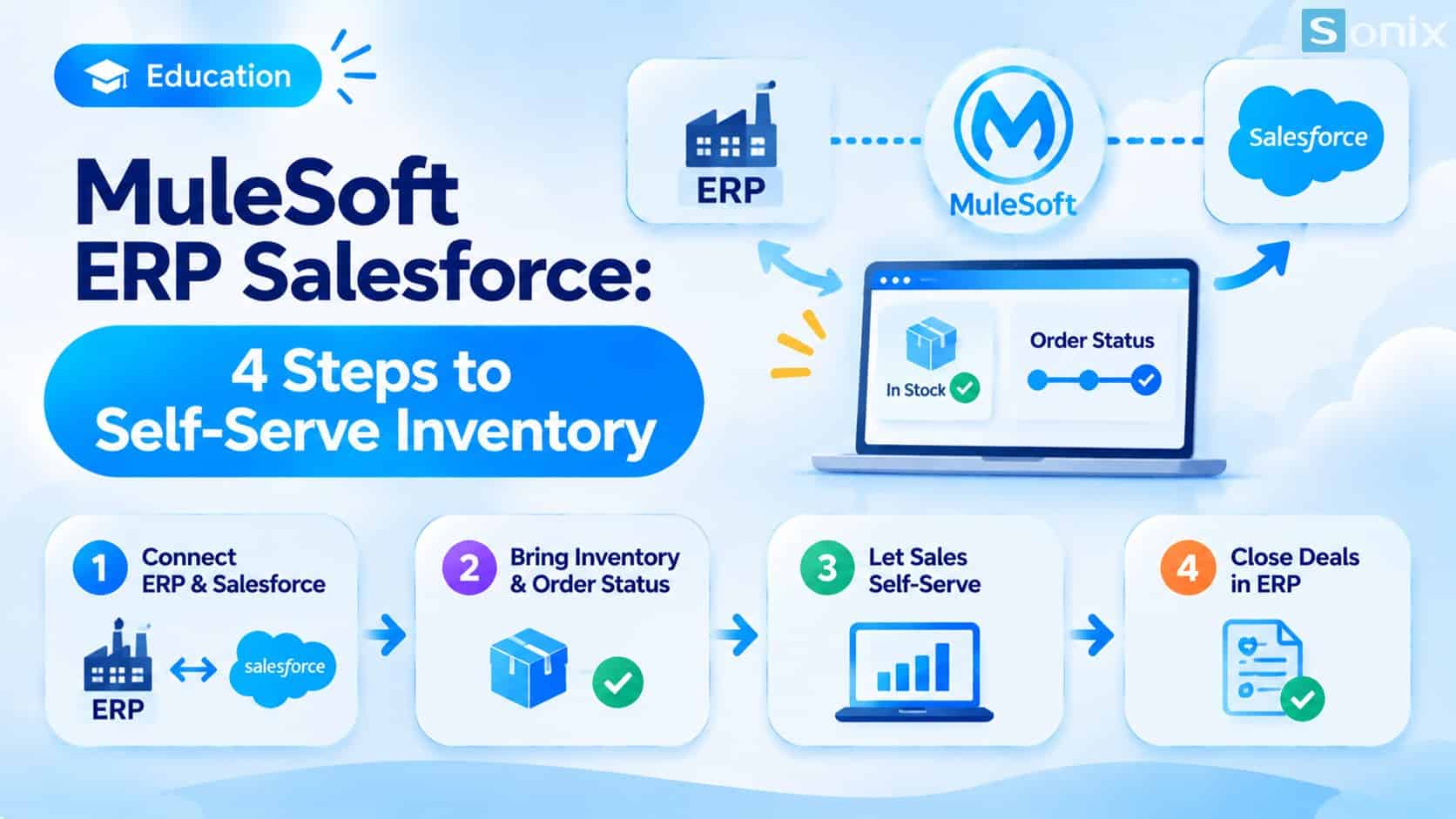
Background: a 200-person factory with a CRM and ERP that are apart
Illustrative scenario: a factory that makes office furniture has 200 people. The sales team uses Salesforce for customers and deals. Planning and the warehouse use an ERP for stock, sales orders and production progress. The two systems do not talk to each other.
Each time a customer asks if an item is in stock or how soon it can ship, sales must call or message the warehouse, wait for a check, then reply to the customer. When a deal closes, the order is typed into the ERP by hand. The table below describes the usual flow of information.
| Step | Who does it | The problem |
|---|---|---|
| Customer asks about stock and delivery time | Sales | Cannot look it up, must ask someone else |
| Check stock and production progress | Warehouse, planning | They must stop their own work to answer |
| Quote the customer | Sales | Only after the answer comes back, late for the customer’s need |
| Close the deal and enter the order in the ERP | Sales, admin | Retyped by hand, error-prone and slow |
According to the brief’s hook, the total time from a customer’s question to an answer can reach half a day. That is what an integration project aims to shorten.
MuleSoft ERP Salesforce: a 4-step approach
According to Salesforce’s materials, MuleSoft follows an API-led approach, building reusable APIs instead of hard-wiring each link. See the foundations in the Trailhead module on connecting external data or our article What Is MuleSoft. The four steps of the illustrative scenario:
Decide which system is the source of truth for each piece of data
- Usually the ERP holds the truth about stock, sales orders and production progress, while Salesforce holds customers and deals
- Write this down before designing, so two places do not both claim to be the source
Bring stock and order status from the ERP into Salesforce
- MuleSoft reads data from the ERP and shows it on Account and Opportunity
- Sales open a deal and see available stock and the status of related orders, no need to ask anyone
Send won orders from Salesforce to the ERP
- When a deal is won, the integration creates a sales order in the ERP automatically
- The ERP confirms whether the order was accepted and returns an order number to store in Salesforce
Monitor errors and supervise
- An order may be rejected by the ERP for missing or invalid data, so you need a way to alert whoever handles it
- Assign an owner to watch the flow after it goes live
Two ways to show stock: MuleSoft or Salesforce Connect
If the goal is only to let sales see ERP data in Salesforce, MuleSoft is not the only option. Salesforce Connect is another route.
According to the Salesforce Connect documentation (which may be an older version), it maps external objects to data tables in an external system, accessing the data on demand instead of copying it into Salesforce. The documentation’s own example is order information stored in a back-office ERP.
| Criteria | MuleSoft (integration layer) | Salesforce Connect |
|---|---|---|
| Main goal | Connect and orchestrate several systems, in both directions | Let users see external data right in Salesforce |
| Data | Processed, transformed and can be stored | Accessed on demand, not copied |
| Creating orders in the ERP | Doable, with logic and error handling | Depends on setup, more often used for viewing than orchestration |
| Watch for | Design, license, who maintains it | Performance, license, requirements of the data source |
This scenario needs both directions: viewing stock and creating sales orders, so MuleSoft is the better fit. If you only need to view data, consider the simpler route first. For even simpler flows, see MuleSoft Composer: 3 Easy Integration Flows, No Code Needed.
Example: from is it in stock to a sales order
Hypothetical example, no figures: an office customer wants to order a batch of chairs. The table below compares the information flow before and after integration.
| Moment | Before integration | After integration |
|---|---|---|
| Customer asks if it is in stock | Sales call the warehouse and wait | Sales see available stock on the Opportunity |
| Customer asks how soon it ships | Ask about the production plan | See order status and related progress on the Account |
| Quote | After an answer comes from the warehouse | Right during the call or meeting with the customer |
| Close the deal | Retype the order into the ERP | The order is created in the ERP, which returns the order number |
One important note: physical stock differs from available stock. Items already reserved for another order should not show as sellable. Agree with the warehouse which ERP field is shown to sales.
Lesson: product codes and customer codes
This is what usually makes projects most laborious, and it is not programming. For Salesforce and the ERP to understand the same product and the same customer, both sides must agree on codes.
| Data | Common problem | How to handle it |
|---|---|---|
| Product code | Salesforce and the ERP use different codes, or one product has several codes | Build a mapping table and choose one shared code as the key |
| Unit of measure | One side counts sets, the other counts pieces | Agree on a unit and the conversion |
| Customer code | A customer has different codes in each system | Attach one shared code to both sides |
| Old data | Discontinued products still in the catalog | Clean the catalog before integrating |
Hypothetical example: the same chair model is GH-001 in Salesforce and 100245 in the ERP. Without a mapping table kept by a specific person, stock will show for the wrong product. Give this job to someone who understands both sales and the warehouse. On why clean data decides the quality of every integration, see Einstein AI in Salesforce for sales and marketing.
What to weigh
Who is the source of truth. Salesforce should only record the intent to buy, and the ERP confirms whether the order is valid and issues the order number. Do not let two places both edit the same data.
Performance and latency. If every time a deal is opened a call goes to the ERP, the page can be slow. Test and decide which data needs to be instant and which can be on a schedule.
Error handling. An order rejected by the ERP, ERP maintenance or a lost connection can all happen. You need a way to alert and retry in a controlled manner.
Security. Not all ERP data should show to sales, such as cost price or receivables. Decide clearly which fields are shown.
Cost and license. MuleSoft and Salesforce Connect each have their own licenses, and an integration project needs implementers. Ask for a quote based on your real needs. This is general reference, not financial advice.
If you need help, see Sonix’s Salesforce solutions (in Vietnamese).
MuleSoft ERP Salesforce checklist for a manufacturer
If your sales team still has to ask the warehouse before quoting, run through this short list.
☐ Decided which system is the source of truth for stock, sales orders and customers
☐ Decided whether you only need to view ERP data or need both directions
☐ Built a product and customer code mapping table and assigned someone to keep it
☐ Agreed on units of measure and the type of stock shown to sales
☐ Defined how to handle ERP rejections or lost connections
☐ Decided which ERP fields are not shown to sales
☐ Asked about licenses and implementers before starting
Can your sales team see stock without asking anyone? Leave a comment below and the Sonix team will suggest a sensible place to start.
Salesforce
MuleSoft
ERP System
Salesforce Sales Cloud
Business
Book a conversation with Sonix to review how your CRM and ERP are connected today and decide on a sensible starting point before investing.
Sonix: Your success is our happiness.
Leave us your comment