

 Tiếng Việt
 日本語
日本語A discount request goes out by message, two days pass before anyone replies, and nobody remembers who agreed. If that sounds familiar, a Salesforce approval process replaces chasing signatures with a clear flow: the record goes to the right approver by condition, the approver knows what they are approving, and every decision is kept.
In simple terms, an approval process has three parts: the conditions for a record to enter the process, the approval steps (who approves, in what order), and what the system does automatically when the record is approved, rejected or recalled. This article uses threshold-based discount approval as the example.
Important note: the office equipment distributor and the discount thresholds in this article (10%, 20%) are illustrative assumptions, not recommended standards. The real approval levels depend on each organization’s pricing policy and internal authority. Salesforce now offers two ways to build approvals, classic and Flow-based, so choose the one that suits your org. Menu names may differ by edition and version.
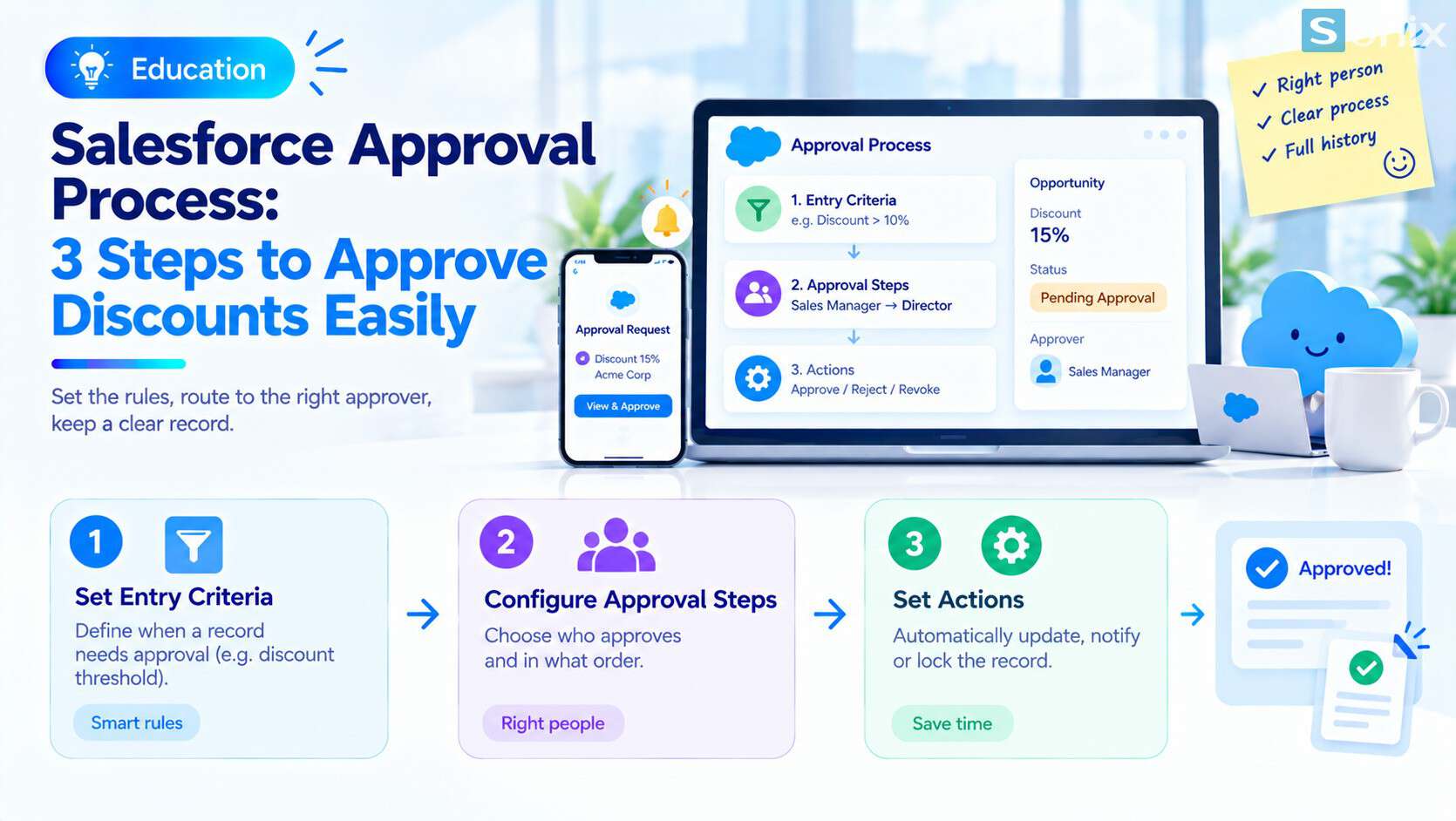 A threshold-based discount approval flow using a Salesforce approval process.
Why asking for discount approval by message tends to fail
Asking for approval by message sounds quick, but three things are missing. The approver does not know exactly what they are approving, because the information is scattered across messages, quotes and spreadsheets. There is no deadline, so requests sit waiting. And there is no history, so when someone later wants to check who agreed to which discount, nothing is left to look up.
Illustrative example: a salesperson at an office equipment distributor wants to discount a large order. He messages the team lead, who is in a meeting and replies two days later. Meanwhile the customer waits, and by the time the contract is signed, nobody is sure who approved the final discount.
| Before | After | |
|---|---|---|
| How approval is requested | Scattered messages and emails | Submitted directly on the opportunity or quote record |
| The approver | Whoever you remember or ask | Chosen automatically by condition, for example the discount level |
| Information | Spread across several places | The approver sees everything on one record |
| History | Hard to look up | Records who approved, when and with what comment |
How a Salesforce approval process works
An approval process has three layers. Understanding them is enough to read any approval process.
Entry criteria
- Decides which records need approval, for example opportunities with a discount above a threshold
- Records that do not qualify skip approval
Approval steps
- Define who approves and in what order, for example the team lead first, then the sales director
- You can choose a specific approver, a queue or the submitter’s manager
Actions on the outcome
- When a record is approved, rejected or recalled, the system can update fields, send notifications or lock the record
- The submitter can recall the request if it needs changes
Approvers receive a notification and, depending on configuration, can approve right in the Salesforce mobile app or by email. If you need to get comfortable with Setup first, Salesforce Sales Cloud Setup Guide in 10 Minutes is a good place to start.
3 steps to set up threshold-based discount approval
Agree the rules with leadership
- Agree which discount levels need approval and who may approve
- Write down the thresholds and approvers as a simple table like the example below
Build the process in Salesforce
- Create the process on the relevant object, usually opportunity or quote
- Set the entry criteria by discount level, then add the approval steps in order
- Configure the actions for approval, rejection and recall
Notifications, mobile approval and history
- Turn on notifications so approvers know a record is waiting
- Show approvers how to approve on a phone
- Check that the approval history shows who approved, when and with what comment
An illustrative threshold example, for demonstration only:
| Discount level | Approver | Note |
|---|---|---|
| Up to 10% | No approval needed | The salesperson decides within their authority |
| Above 10% up to 20% | Sales team lead | Sent automatically when the opportunity is saved |
| Above 20% | Sales director | May go through the team lead first |
This is not a recommended level. Thresholds and approvers are set by your own pricing policy. This article is general reference material, not financial or legal advice.
Classic approval process or Flow-based
Salesforce now has two ways to build approvals, and you should choose the one that fits your org.
| Classic | Flow-based | |
|---|---|---|
| Characteristics | The long-established approach, configured step by step | Built in Flow Builder, supporting more complex logic such as parallel approvals and dynamic steps |
| Fits when | Simple, sequential approvals | Multi-branch processes or ones that combine with other flows |
| Note | According to sources, Salesforce is no longer investing in new features | According to sources, introduced in Spring 25 and extended release by release |
| History | Uses Approval History | Uses Approval Trace |
Public sources say the classic approval process still works and no end-of-support date has been announced, but new features are concentrated in Flow. Check current Salesforce documentation for names, supported editions and limits before choosing.
Notes for applying this to your organization
Start with a simple process. One threshold and one or two approval levels are enough for a first round. Add complex branches once the team is comfortable.
Name a backup approver. If the approver is away, records will sit waiting. Decide in advance who approves instead and how overdue records are handled.
Watch for records waiting too long. A report or dashboard of records pending approval shows the bottleneck at once. For ideas on first reports, see CRM Reports: 3 Simple Must-Have Reports to Start With.
Be careful when switching methods. Reports built for classic approvals may not apply to Flow-based approvals, so check your reports before moving.
Try before going live. Test in a sandbox or a learning org with made-up data before applying it to real data.
Checklist before building an approval process
Before configuring anything, run through this short list to make sure the process reflects how your organization approves prices.
☐ Agreed discount thresholds and approvers with leadership
☐ Chose the object (opportunity or quote)
☐ Chose the method: classic or Flow-based
☐ Configured the actions for approval, rejection and recall
☐ Named a backup approver for absences
☐ Showed approvers how to approve on a phone
☐ Checked that approval history shows enough information
☐ Built a report of records pending approval
Through which channel does your company approve prices or discounts today? Leave a comment below, the Sonix team would love to hear how you work.
Salesforce CRM
Best Practices
How-to
Business
Book a consultation with Sonix to review how you approve prices today and design an approval process that fits your organization.
Sonix: Your success is our happiness.
Leave us your comment