

 Tiếng Việt
 日本語
日本語How many nearly identical follow-up emails do you rewrite every day? A Salesforce email template combined with Quick Text is a way to send follow-ups faster while still getting the name and the task right: the template handles the frame and merge fields, and Quick Text handles the phrases you use all the time. This article shows how to use both, with an illustrative example and tips for keeping emails from reading like mass mail.
Important note: this is a general guide based on public Salesforce documentation and information. Interface, menu names and features can differ by edition and org configuration, so try things in a test org first. The office equipment distributor in the example is hypothetical, not a real customer.
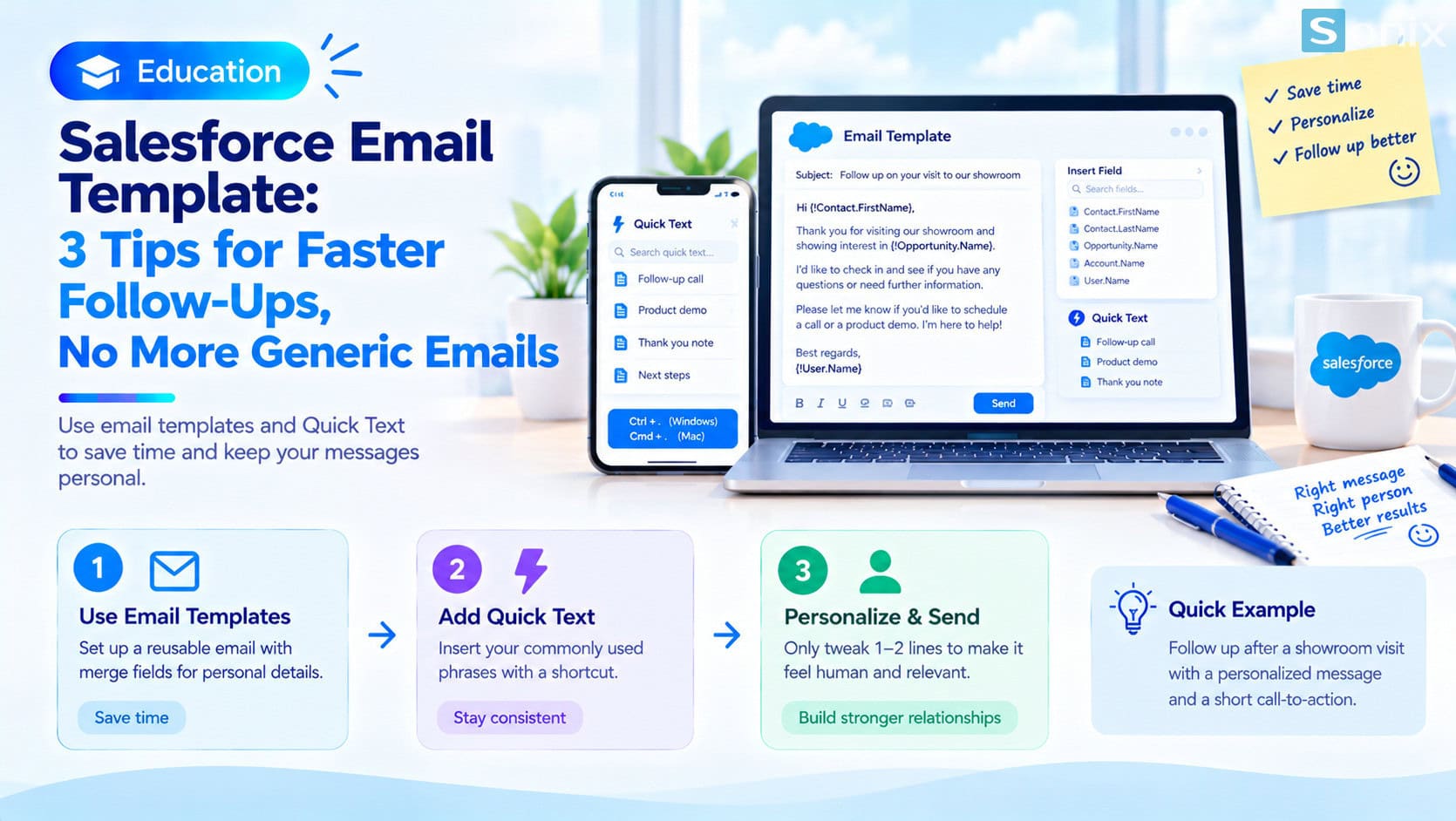 The template handles the frame, Quick Text handles the common phrases, and you adjust one or two sentences for the recipient.
Why follow-ups are slow or sound robotic
There are two common approaches, and both have a weakness. The first is rewriting almost the same email every day: right person, right topic, but slow and easy to miss. The second is using one generic template for everyone: fast, but the recipient can tell right away it went to many people.
Follow-up is the step that decides whether a deal keeps moving or goes cold, so it needs to be both fast and in context. Two Salesforce features help you do both: email templates with merge fields, and Quick Text.
Salesforce email template: a frame with merge fields
An email template lets you prepare a message in advance and insert merge fields. When you send, Salesforce replaces these fields with real data from the record, such as the customer’s name, the deal name or the owner.
In Lightning email templates, merge fields use a triple curly brace syntax and are grouped by recipient, sender, organization and related entity. An opening could look like this:
Thank you for taking the time to talk about {{{Opportunity.Name}}}.
…
Best regards,
{{{Sender.Name}}}
When you create the template, choose the right Related Entity Type (for example Opportunity or Contact), because it decides which fields you can use. A common limit is that a template mainly pulls data from one object, so to bring in a field from a related object you may need a formula field. Exact field names depend on your org, so use the merge field insert button in the editor instead of typing them by hand.
Quick Text: common phrases, inserted with a shortcut
Quick Text stores phrases you use again and again, such as a thank-you line, a scheduling sentence or a next-step closer. While writing an email, you open the list with a shortcut (Ctrl + . on Windows, Cmd + . on Mac), pick a snippet and insert it without leaving the record you are working on.
Where a template is a whole message, Quick Text is a small piece. Used together, you can start from a template and add a few Quick Text snippets that suit the situation.
About enabling it: in Lightning Experience, Quick Text is often already on in many orgs, but an admin should still go to Setup, Quick Text Settings, to check that it is enabled, which channels are used (such as email) and how folder sharing is set. If you cannot see Quick Text, check the configuration and the user’s permissions, and compare against Salesforce’s official documentation for your edition.
3 tips for using a Salesforce email template without sounding robotic
One template per situation
- Split templates by situation: after a showroom visit, after a quote, a reminder, a thank-you after closing
- Use a naming convention that is easy to search, for example “Opportunity: after quote”
- Group them into folders so the whole team can use them
Auto-fill the data, keep the human touch for the writer
- Let the template handle the customer name, deal name and owner
- Always edit one or two sentences for the recipient, for example recalling something they said in the conversation
- Do not let the email read like mass mail
Check the data and send a test before the whole team uses it
- Empty merge fields make an email look broken, so data such as names and owners must be filled in
- Send the template as a test on a real record in a test org
- The sender needs permission to see the fields used in the template
An illustrative example: an email 3 days after a showroom visit
A hypothetical example: an office equipment distributor hosts a customer at its showroom. Three days later, the sales rep sends a follow-up email. Instead of writing a new one, they do this:
| Step | What they do | Tool |
|---|---|---|
| 1 | Open the Opportunity record and choose the “After showroom visit” template | Email template |
| 2 | Customer name, deal name and owner fill in automatically | Merge fields |
| 3 | Insert the call-back scheduling sentence with a shortcut | Quick Text |
| 4 | Edit one or two sentences about the model the customer looked at, then send | Written by hand |
The repeated parts are automated, while the part that shows care for this particular customer is still added by the writer. This illustrates a process; there are no figures from a real customer.
Notes for rollout
Check by edition and org configuration. Whether Quick Text is already on, which channels it supports and who can edit it can differ between orgs. Compare against Salesforce’s official documentation or ask your implementation partner.
Know your template type. Lightning email templates and Classic email templates use different merge field syntax, so do not copy text from one to the other as is.
Manage the library. Use clear names, group by folder and review regularly to remove outdated templates, otherwise the library gets messy quickly.
Start with a few. Pick the 3 to 5 follow-up situations that repeat most and build templates for them first. If you are setting up Sales Cloud, see Salesforce Sales Cloud setup guide in 10 minutes, and to see how AI in Salesforce supports sales teams, read Einstein AI in Salesforce: what AI does for your sales and marketing team.
Salesforce email template checklist for follow-ups
Before rolling out to the whole team, run through this short list.
☐ Chosen the 3 to 5 follow-up situations that repeat most
☐ One template per situation, with a searchable name, placed in a folder
☐ Picked the right Related Entity Type for each template
☐ Checked Quick Text Settings, channels and user permissions
☐ Sent a test on a real record in a test org
☐ The whole team agrees to always edit one or two sentences for the recipient
How do you write your follow-ups today? Leave a comment below, the Sonix team would love to hear how you do it.
Salesforce CRM
How-to Guide
Best Practices
Sales
Book a consultation with Sonix to build a library of email templates and Quick Text that fits your sales process.
Sonix: Your success is our happiness.
Leave us your comment