

 Tiếng Việt
 日本語
日本語A deal has moved to Closed Won, but the amount field is still blank. The month-end revenue report is off, and the head of sales has to message each rep to ask. Almost every business that uses a CRM has been through this.
The cause usually isn’t in the report, it’s at the moment of data entry. When the system lets users save anything, bad data flows straight into the dashboard, and fixing it later takes far more effort than blocking it at the start. For example, an office-equipment distributor closes a batch order of printers but forgets to enter the value, and for the entire following quarter the forecast numbers all come up short.
So what does a Salesforce validation rule do? It’s a rule that checks a condition when a user clicks save on a record, and shows an error message if the data doesn’t pass. This post explains how it works, walks through 3 concrete configuration examples, and covers the points that keep rules from becoming a barrier for your team.
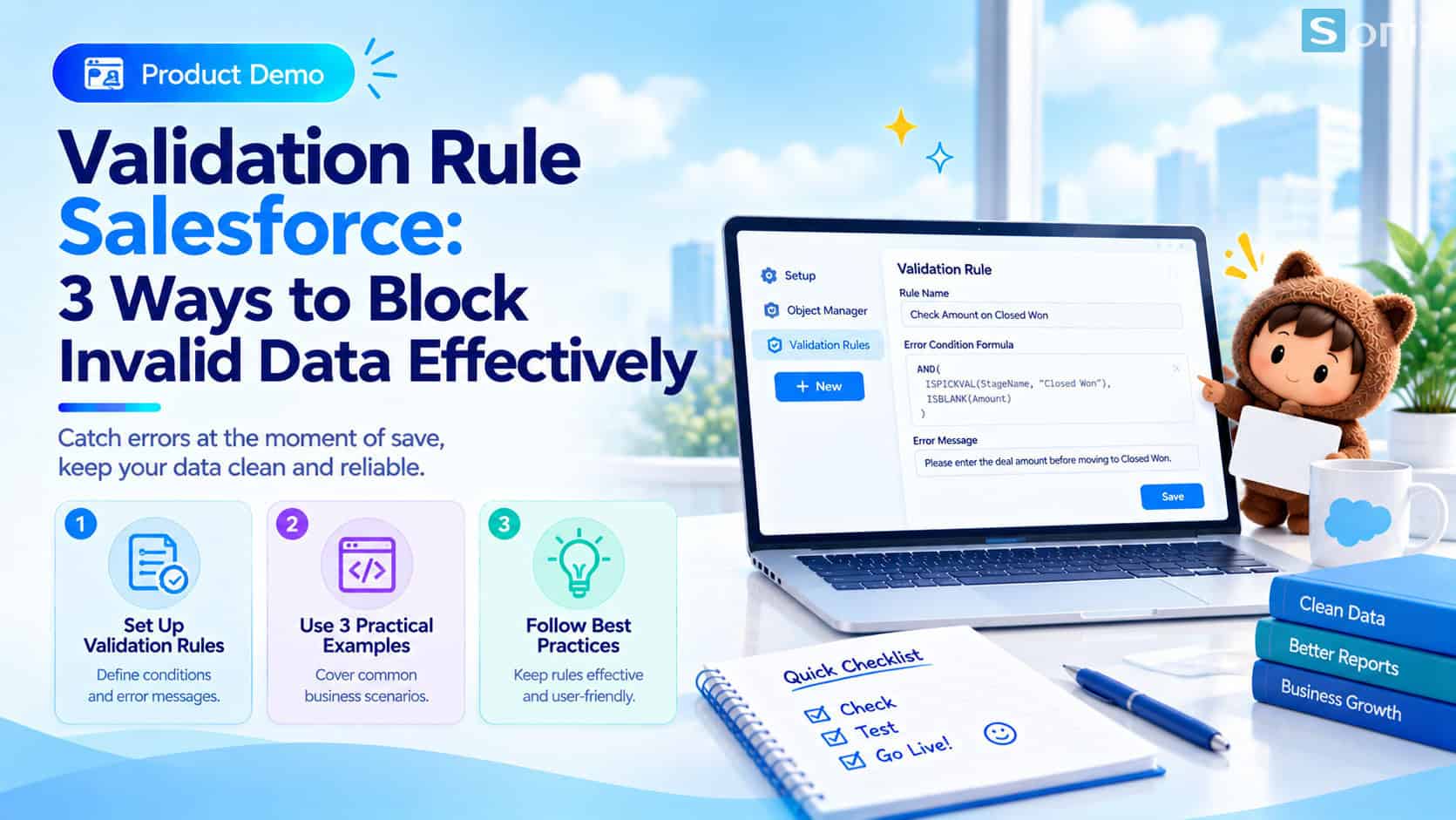 A validation rule shows the error right at save, before bad data enters the system.
What Is a Salesforce Validation Rule?
A validation rule is a logic formula attached to an object (Opportunity, Lead, Account, or a custom object). Every time a user saves a record, Salesforce runs this formula. If the result is true (meaning the data is wrong), the system blocks the save and shows the message you wrote in advance.
The difference from an ordinary required field is that it’s conditional. A required field is always required. A validation rule only requires something when it needs to, for example only requiring the amount once a deal reaches Closed Won. That way reps can still enter data quickly in the early stages while the final data is still complete.
The table below compares the two ways of working.
Without a validation rule
| With a validation rule
|
4 Steps to Create a Validation Rule
The configuration process is the same for every object. If you’re new to the Setup area, the guide on setting up Salesforce Sales Cloud in 10 minutes helps you learn how to navigate first.
Open the Validation Rules page
- Go to Setup > Object Manager
- Choose the object you want to check
- Choose Validation Rules > New
Name and describe it
- Fill in a short, clear Rule Name
- Write a Description so the next person knows what the rule does
- Tick Active once testing is done
Write the Error Condition Formula
- The formula returns TRUE when the data is WRONG
- Use familiar functions such as AND, OR, ISBLANK, ISPICKVAL
- Click Check Syntax to catch syntax errors
Write the error message and save
- Fill in an Error Message that says exactly what to fix
- Choose the Error Location: top of page or right at the field
- Click Save and try entering bad data to test it
3 Salesforce Validation Rule Examples You Can Configure Right Now
All three examples below are short and usable right away. Custom field names (ending in __c) are just illustrations, replace them with the real API Names in your org.
Example 1: Closed Won requires an amount. This rule blocks moving an Opportunity to Closed Won while the Amount field is blank. Close Date is already a required field on Opportunity by default, so you don’t need to add a condition for it.
AND(
  ISPICKVAL(StageName, "Closed Won"),
  ISBLANK(Amount)
)
Suggested error message: “Please enter the deal amount before moving to Closed Won.”
Example 2: Referral leads must record the referrer. Suppose you’ve added a “Referral” value to the Lead Source field and created a text field called Referrer Name. The rule requires that field whenever the source is “Referral”, helping you see which channel brings in quality customers.
AND(
  ISPICKVAL(LeadSource, "Referral"),
  ISBLANK(Referrer_Name__c)
)
Suggested error message: “Leads from the Referral source need the referrer’s name.”
Example 3: End date can’t be before start date. This example applies to the Campaign object, which already has Start Date and End Date fields. The formula only runs once an end date has been entered, avoiding false errors when the field is still empty.
AND(
  NOT(ISBLANK(EndDate)),
  EndDate < StartDate
)
Suggested error message: “End date must be on or after the start date.”
Tips So Rules Don’t Frustrate Users
The most important principle is few rules, but clear ones. Every rule you add is another chance to block a rep who’s in the middle of a call with a customer. With too many overlapping conditions, people will dread entering data or rush through it carelessly, and the goal of clean data backfires.
The error message matters just as much as the formula. Say exactly which field needs fixing and how, instead of a generic line like “Invalid data.” Place the error right at the relevant field so users immediately see what to address.
Finally, remember that a validation rule also applies to entries via Data Loader, integrations, or automation, and only checks when a record is saved, it doesn’t rescan old data. Create and test on a Sandbox first (see What is a Salesforce Sandbox), and if you’re about to import data in bulk, also read preparing data before moving to Salesforce. For integration flows that need to be exempt from the check, you can use a Custom Permission as a bypass condition.
Checklist Before Turning On a Validation Rule
Clean data doesn’t come from periodic cleanups, it comes from blocking errors at the moment of entry. Before activating a new rule, run through the list below.
☐ The rule solves a real data error that has shown up in reports
☐ The formula has passed Check Syntax and been tested in a Sandbox
☐ The error message says exactly what to fix
☐ Data Loader and running integrations have been accounted for
☐ The total number of rules on the object is still moderate
Which data error do you run into most? Leave a comment below, and the Sonix team will try writing a rule for your exact case.
Validation Rule
Clean Data
Salesforce Guide
Book a consultation with Sonix to review your data-entry process and design a rule set that fits your business.
Sonix: Your success is our happiness.
Leave us your comment