

 Tiếng Việt
 日本語
日本語A new lead arrives at 9 p.m., nobody picks it up until the next morning, and by then the customer has often called someone else. Lead assignment rules in Salesforce route new leads to the right person or queue by conditions such as region, source or product interest, and send an email notification as soon as the lead is assigned.
The short answer: each rule is made of entries that are checked in order, and a lead is assigned by the first entry it matches. A web form can also drop leads straight to the right person. The most important step before configuring anything is to write the routing logic down on paper.
Important note: the office equipment distributor and the regional split in this article are illustrative assumptions, not a real customer. Only one assignment rule is active at a time, and lead assignment rules do not provide round-robin out of the box. Menu names may differ by edition and version.
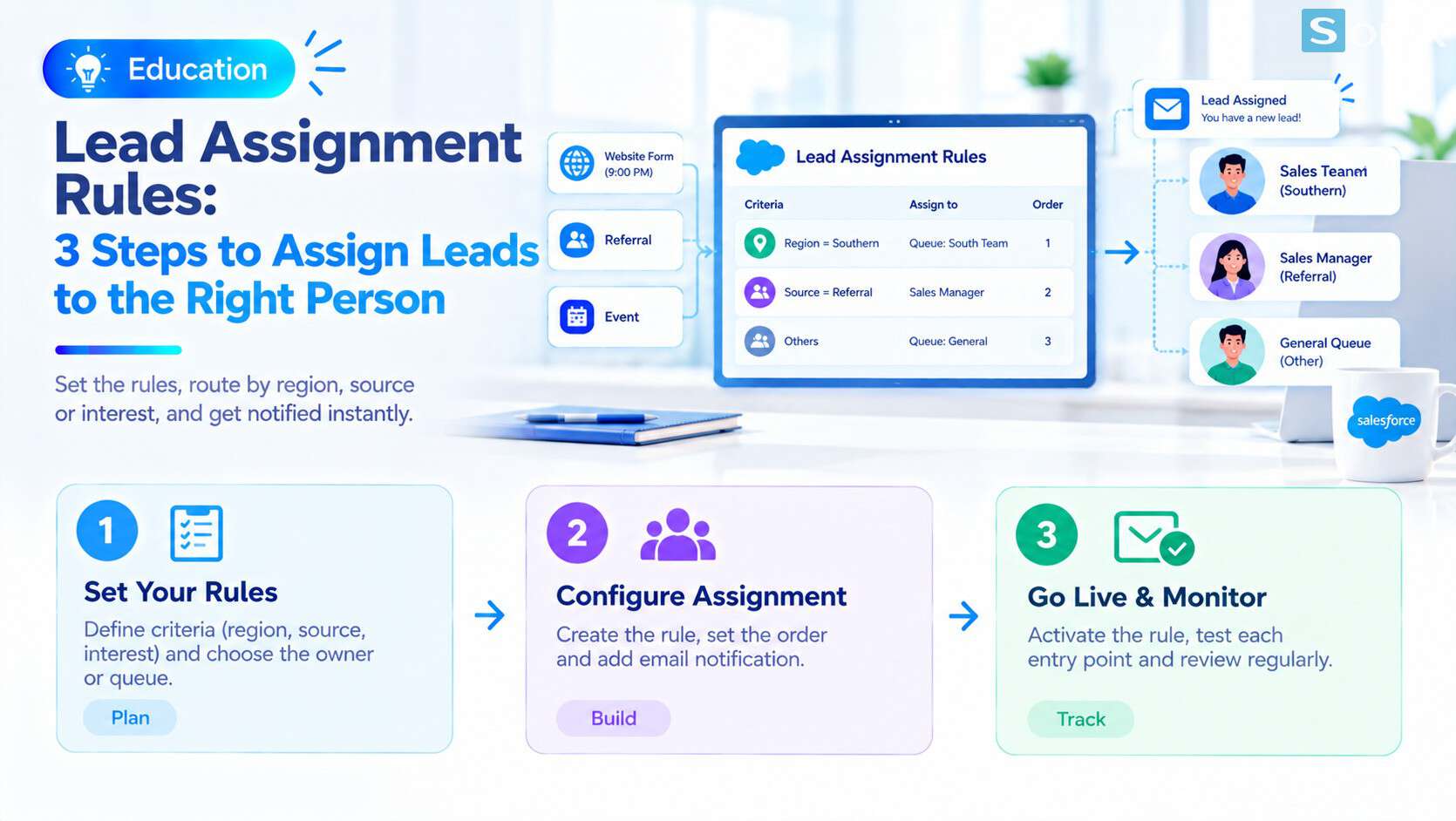 A diagram for routing new leads by region and source with lead assignment rules.
Why new leads end up late or called by several people
When leads are assigned by hand, two things tend to happen. Leads that arrive after hours wait until someone free notices them. Or a lead lands in a shared list where several people see it and all call, annoying the customer who is contacted by many people about one request.
Illustrative example: an office equipment distributor receives leads from a web form, referrals and events. A lead submitted at 9 p.m. sits in a shared list. The next morning, two salespeople both see it and both call, while the customer already received advice from another company the evening before.
| Before | After | |
|---|---|---|
| A new lead arrives | Sits in a shared list | Assigned at once to the right person or queue |
| The owner | Whoever sees it first calls | A clear owner |
| Notification | You must open the list yourself | An email goes out as soon as the lead is assigned |
| Control | Hard to know which leads nobody owns | Easy to review by owner |
How lead assignment rules work
A lead assignment rule is really a list of entries. Each entry says: if a lead meets these conditions, assign it to this person or queue.
Rule entry
- Each entry sets conditions on lead fields, for example state or province, lead source or product interest
- Several conditions can be combined in one entry
Person or queue
- Each entry assigns the lead to a user or a queue
- A queue is a group where whoever picks it up first handles it
Order and first match
- Entries are checked in the order you set, from top to bottom
- The first matching entry decides the owner, and later entries are not checked
Email notification
- You can choose an email template to tell the new owner as soon as the lead is assigned
- This is what stops a 9 p.m. lead from sitting idle until morning
If you need to get comfortable with Setup first, Salesforce Sales Cloud Setup Guide in 10 Minutes is a good place to start.
3 steps to set up routing by region and source
Write the routing logic on paper
- List each case: which region goes to which team, which source goes to whom
- Decide where a lead that matches no rule will go, for example a shared queue
- Have the sales manager confirm it before you configure anything
Create the rule and its entries
- In Setup, find Lead Assignment Rules and create a new rule
- Add each entry in order, with a person or queue for each
- Choose an email notification template for each entry if needed
Activate the rule and check how leads enter
- Activate the rule (only one rule is active at a time)
- Submit a test web form and check the owner and the notification email
- For manually created leads and imports, check that the option to use the active assignment rule is selected
An illustrative routing example, for demonstration only:
| Condition | Assign to | Note |
|---|---|---|
| Leads in southern provinces | South team queue | The South team picks leads from the queue |
| Leads from referrals | Sales team lead | The team lead assigns onward |
| All other leads | Shared queue | The fallback rule, placed last |
This is for illustration, not a recommendation. The real rules depend on how your team is organized and on your policies.
Assign to a person or to a queue
Each entry can assign to a specific person or to a queue. Which to choose depends on how the team works.
| Assign to a person | Assign to a queue | |
|---|---|---|
| The owner | One specific user | A group, whoever picks it up first handles it |
| Fits when | One person owns a fixed region or customer set | Several people work the same region or source |
| Risk | If that person is on leave, the lead waits | Needs a habit of picking up leads, otherwise they sit in the queue |
| Round-robin | Not built in | Not built in |
A queue works on a first-come basis, which is different from round-robin, where leads are handed to each person in turn. Lead assignment rules do not provide round-robin out of the box. If your team needs it, it usually has to be built with queues plus a counter field and a Flow, or with a separate tool. Talk to your implementation partner if you need it.
Notes to keep the rules working correctly
Only one rule runs at a time. You can create several rules but only one is active, and activating a new one turns off the old one. Put all your cases into entries of the same rule.
The rule does not always run by itself. For manually created or edited leads, users usually have to select the option to use the active assignment rule, while leads from web forms usually run automatically. This is the most common reason a rule seems not to work, so check every path a lead can take in.
Entry order matters. The first match wins, so put specific cases at the top and the fallback at the bottom.
The rule mainly runs when a lead is created. Existing leads are not reassigned automatically. Reassigning needs a separate action.
Write the rules down and review them monthly. One person should review monthly whether the rules still match how the team is organized, for example when someone leaves or a region changes.
Avoid duplicate leads. An assigned lead can still duplicate an older record. See Salesforce Duplicate Rules: 3 Steps to Stop Duplicates.
Checklist before activating lead routing
Before activating the rule, run through this short list to make sure the routing reflects how your team works.
☐ Wrote the routing logic on paper and the sales manager confirmed it
☐ Decided where leads matching no rule will go
☐ Created entries in the right order, specific cases first
☐ Chose person or queue for each entry
☐ Chose a notification email template
☐ Activated the rule and submitted a test web form
☐ Checked the option to use the rule for manual leads and imports
☐ Assigned someone to review the rules monthly
How are your leads assigned today? Leave a comment below, the Sonix team would love to hear how you work.
Salesforce CRM
Salesforce Sales Cloud
How-to
Business
Book a consultation with Sonix to review how you assign leads today and design lead assignment rules that fit your team.
Sonix: Your success is our happiness.
Leave us your comment