

 Tiếng Việt
 日本語
A Salesforce Formula Field is a field that calculates its own value from other fields on the same record, so nobody has to type it in. Ask yourself: the number of days a deal has been open, the price after discount, the total value of one customer’s orders, who on your team is still calculating them by hand?
The short answer: a Formula Field calculates from fields on the same record, such as days since a deal was created or price after discount. A Roll-up Summary aggregates from child records up to the parent, such as the total value of a customer’s contracts. One important caution: Roll-up Summary needs a Master-Detail relationship, and for other relationships you need Flow or an additional tool.
Important note: the office equipment distributor and fields such as Discount and Rental Contract below are hypothetical examples, not real customers. Features and limits depend on edition, and menu names may differ by release. Try formulas in a sandbox before using them for real.
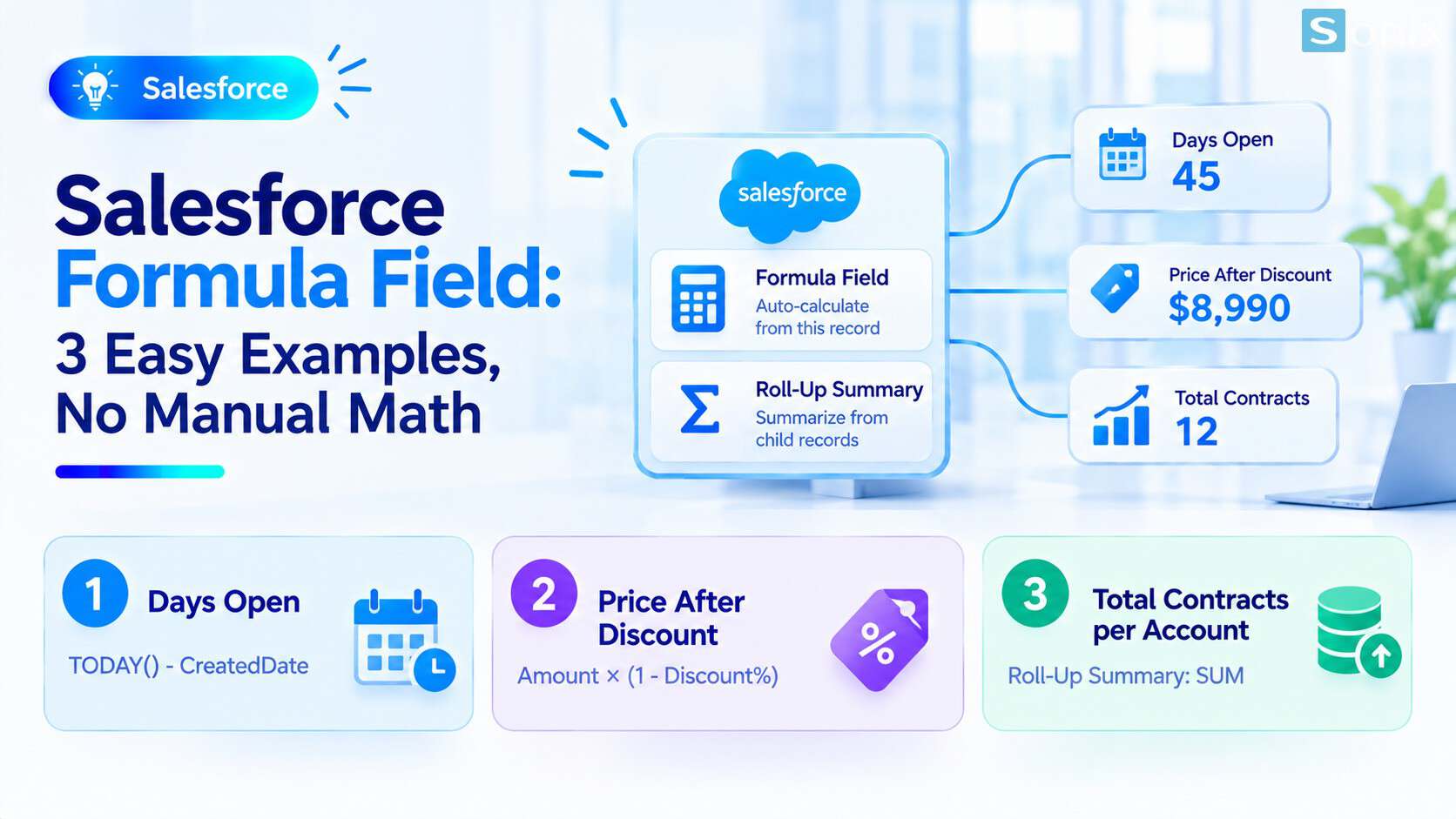
A Formula Field calculates on the same record, a Roll-up Summary aggregates from child records up to the parent.
Why manual math goes wrong
Manually entered numbers have three familiar problems. Everyone calculates differently, so two reps get two results for the same metric. The numbers go stale quickly, because what you typed today is different tomorrow. And when something is wrong, it is hard to tell where it went wrong.
| Manual math | System calculates | |
|---|---|---|
| Consistency | Everyone has their own way | One formula for the whole team |
| Freshness of numbers | Only right when typed | Updates with the data |
| Room for error | Easy to slip or forget | Wrong only if the formula is wrong, fixed in one place |
| Staff time | Spent on every entry | None |
What is a Salesforce Formula Field
A Formula Field is a read-only field whose value is calculated from a formula you set. The formula can use fields on the same record and also fields from the parent record. You can practice building one step by step in the Trailhead module on formulas.
Users cannot edit this value by hand, so nobody can enter it wrong. When the source data changes, the calculated value changes too. That is the biggest benefit.
3 simple Salesforce Formula Field examples
Hypothetical example: an office equipment distributor wants to stop three manual calculations on Opportunity. Custom field names here are only illustrations, so replace them with your own.
Days since the deal was created
- Create a Formula field with return type Number and no decimal places, using:
TODAY() - DATEVALUE(CreatedDate) - This mirrors the Days Open example in Trailhead: convert the created date-time to a date, then subtract it from today
- Note: days in the current stage is harder, because Salesforce has no ready-made stage change date you can use in a formula. You need an extra date field that a Flow updates whenever the stage changes, then subtract it from today
Price after discount
- Assume a percent field called Discount. Create a Currency formula:
Amount * (1 - Discount__c) - A percent field is used in formulas as a decimal, so 10% equals 0.1
Flag overdue deals
- Create a Text formula:
IF(AND(NOT(IsClosed), CloseDate < TODAY()), "Overdue", "") - Place it on the page layout so managers instantly see open deals past their expected close date
A small tip: use clear field names and write a description of what each one means, because in a few months even you will forget what a formula does. If your CRM foundation is not solid yet, read our Salesforce Sales Cloud setup guide in 10 minutes first.
Roll-up Summary: aggregating from child records up to the parent
A Formula Field can only see data on the current record and its parent. To aggregate from many child records up to the parent, you need a Roll-up Summary. Common examples: the total value of a customer’s contracts, or the number of active contracts.
A Roll-up Summary has four types: COUNT counts child records, SUM adds number, currency or percent fields, and MIN and MAX return the smallest or largest value.
Hypothetical example: you create a Rental Contract Custom Object linked to Account by a Master-Detail relationship, then create a Roll-up Summary on Account to add up contract values. On whether to create a separate object at all, read Salesforce 101: how Standard and Custom Objects differ.
The most important condition: child records must be directly related to the parent by a Master-Detail relationship. That relationship brings a few consequences to weigh:
Deleting the parent deletes the children. Make sure that is acceptable for your data.
Children do not exist on their own. You cannot create a child without a parent, and access usually follows the parent.
There are limits on relationships. According to reference sources, an object can have at most two Master-Detail relationships, and a standard object cannot be on the child side. Check the official documentation for the limits that apply to your edition.
| Criteria | Formula Field | Roll-up Summary |
|---|---|---|
| Calculates from | Fields on the same record, and the parent record | Many child records |
| Example | Days since deal created, price after discount | Total contract value for a customer |
| Relationship needed | None | Master-Detail |
| Editable by users | No, read-only | No, read-only |
| Limits | A limit on compiled formula size | A limit on the number per object |
When the relationship is not Master-Detail
If two objects are linked by a Lookup relationship, Salesforce has no built-in Roll-up Summary for that case. Many businesses do not want to switch to Master-Detail because they fear losing child records when a parent is deleted. Two common routes then are:
Flow. A Flow runs when a child record changes, recalculates the total and writes it to a number field on the parent.
Additional tools. Some add-on packages, including an open-source tool, provide roll-ups for Lookup relationships. Weigh maintenance and support carefully before using one.
Both need someone to configure and test them, so decide whether the need justifies the effort. If you need help, see Sonix’s Salesforce solutions (in Vietnamese).
Tips and checklist
A few tips so that calculated fields do not become a burden later.
☐ Listed the numbers your team is calculating by hand
☐ Chosen a Formula Field for same-record numbers and a Roll-up Summary for numbers aggregated from child records
☐ Checked whether the relationship between the two objects is Master-Detail
☐ Weighed the cascading delete effect of Master-Detail
☐ Tested the formula in a sandbox with a few sample records
☐ Given each field a clear name and a description
☐ Checked formula size limits and Roll-up limits for your edition
Which number do you want the system to calculate for you? Leave a comment below and the Sonix team will suggest a sample formula.
Salesforce CRM
Guide
Best Practices
SME
Book a consultation with Sonix to review the numbers you enter by hand and choose an automation approach that fits your edition and data structure.
Sonix: Your success is our happiness.
Leave us your comment