

 Tiếng Việt
 日本語
日本語Most errors that show up after a CRM implementation don’t come from the software itself, they come from data that was migrated too hastily: duplicate customer records, phone numbers written in inconsistent formats, or fields nobody actually uses anymore getting carried over anyway.
This post lists what to do before migrating data into Salesforce, making the implementation smoother and avoiding weeks of cleanup after go-live.
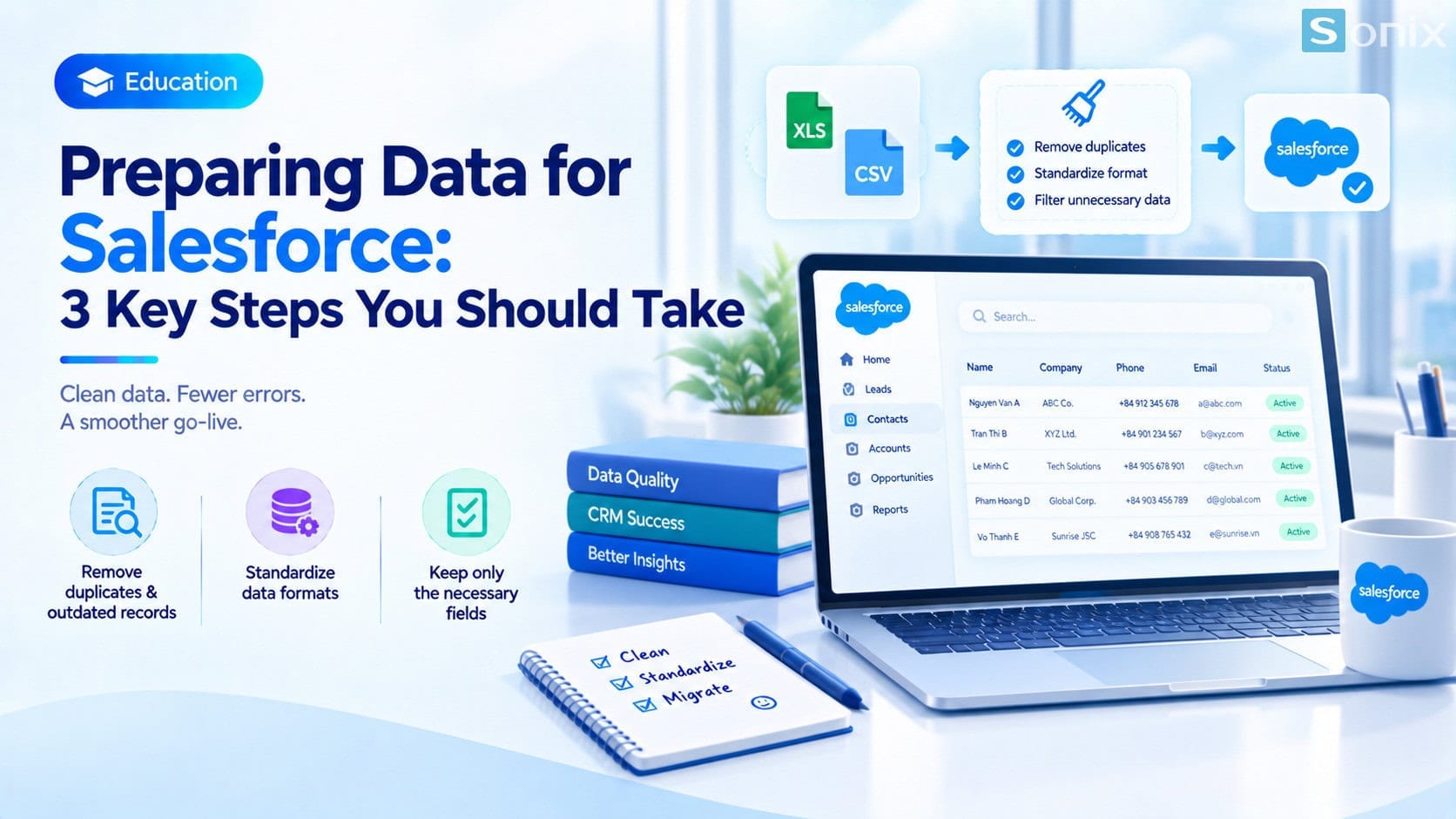
Table of Contents
Context
Why Post-Launch Errors Usually Come From Data, Not Software
When a Salesforce report shows the wrong numbers, most people’s first instinct is to suspect a system bug or misconfiguration. In reality, the root cause in most cases is the input data: two duplicate records getting counted twice, or an important field left blank so it never made it into the calculation.
This kind of problem is hard to catch at the moment of migration, since everything still “works” technically. It only surfaces weeks later, when someone notices the reported numbers don’t match reality, and by then tracing the cause is far harder than cleaning the data would have been in the first place.
Preparation
3 Things To Do Before Migrating Your Data
Remove duplicate and outdated records
- Review your current customer file for duplicate records, which often happens when the same customer gets entered multiple times through different channels
- Delete or merge records for customers who stopped doing business long ago and no longer need tracking
- Check for records with clearly incorrect information, like malformed emails or phone numbers missing digits
- This should be done manually or with a data-cleaning tool before export, not left for Salesforce to sort out after import
Standardize data formats
- Pick one phone number format for the entire file, e.g. always including the country code, avoiding a mix of “0901234567” and “+84901234567”
- Standardize how company names are written, e.g. always the full legal name instead of sometimes abbreviated and sometimes spelled out, which makes searching and filtering harder later
- Standardize date formats if data comes from multiple sources, avoiding a mix of day/month/year and month/day/year rows
- If data comes from several different files, merge and standardize them in one intermediate file before importing, rather than importing each file separately
Identify which fields you actually need
- List every field currently in your file, then flag which ones are actually used in the sales process or reporting
- Drop fields that were created “just in case” but no one has ever looked at since, like a freeform notes column with no structure
- For fields you’re keeping, confirm exactly which Salesforce field each one maps to before importing
- The less unnecessary data you carry over, the cleaner and easier the new system is to use from day one
Checklist
A Quick Checklist Before You Start The Migration
- ☐ Reviewed and removed duplicate records from the source file
- ☐ Deleted or flagged inactive customer records separately
- ☐ Phone number format is consistent across the whole file
- ☐ Company and customer names are written consistently
- ☐ Date formats are consistent across all data sources
- ☐ The list of fields to keep has been confirmed with actual users
- ☐ A field mapping table between the old file and Salesforce is ready
Ownership
Who Should Own The Data Cleanup
Data cleanup usually gets handed to IT or the implementation partner, but in practice, the people who best know which data is still valuable and which is outdated are the sales or customer support teams who use it every day.
The most effective approach is usually a combination: the technical team handles format standardization and duplicate removal with tooling, while the sales team confirms the actual content, like which customers are genuinely still active and worth keeping.
The time spent cleaning data before migrating to Salesforce is always far less than the time needed to fix errors after go-live. If you want to see firsthand how data actually looks in Salesforce after an import, the Salesforce Sales Cloud setup guide in 10 minutes is a good place to try it in a real environment.
Preparing to migrate your data into Salesforce?
Book a free consultation, the Sonix team will help you assess your current data and plan a migration that avoids post-launch errors.
Sonix: Your success is our happiness.
Leave us your comment