

 Tiếng Việt
 日本語
日本語The fastest way to understand Salesforce is to click around yourself. Developer Edition is a free Salesforce org meant for learning and experimenting, and about 30 minutes is enough for a first round. The short answer: create the org, then do exactly the 5 things below to walk through the basic life of a deal.
The five things are creating sample Leads, converting a Lead, moving an Opportunity through its stages, building a pipeline report and adding a Validation Rule. This is aimed at beginners, and it also works well as a learning exercise for a whole team before talking to a consulting partner.
Important note: Developer Edition is for learning and experimenting, not for a business’s real data. Customer names and figures in this article are illustrative sample data. Menu names may differ depending on the current interface, so check the official sign-up page before you start. The time given for each task is only an estimate and depends on your pace.
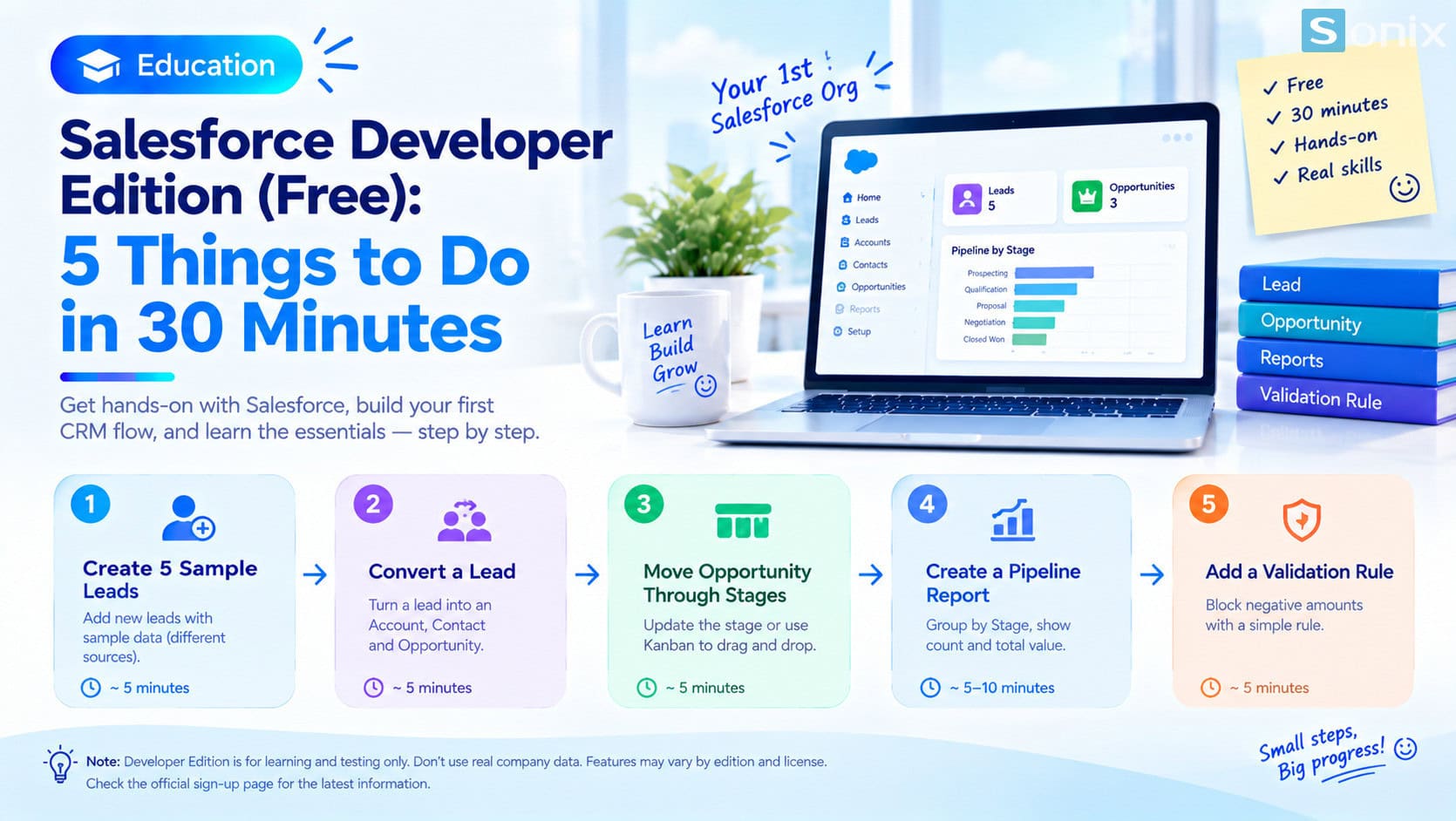 Five things to do in your first 30 minutes on a free Developer Edition org.
Free Developer Edition: sign up in a few minutes
Developer Edition is a free Salesforce org for trying out features. According to Salesforce guidance, the org does not expire as long as you log in at least once every 6 months, and the maximum data storage is 5 MB, which is enough for this exercise.
Sign up
- Go to developer.salesforce.com/signup
- Fill in the form with a real email you can read, because Salesforce sends a confirmation email
- The username must look like an email address and be unique, so you can add your own suffix
Confirm and log in
- Open the email, click the confirmation link and set a password
- Log in at login.salesforce.com with the username and password you just created
If the sign-up button does not work, try a private window or another browser. To get comfortable with Setup, see Salesforce Sales Cloud Setup Guide in 10 Minutes.
| Task | What you learn | Estimate |
|---|---|---|
| 1. Create 5 sample Leads | How prospects are recorded | About 5 minutes |
| 2. Convert one Lead | A Lead becomes an Account, Contact and Opportunity | About 5 minutes |
| 3. Move an Opportunity through stages | How to track a deal’s progress | About 5 minutes |
| 4. Build a pipeline report | See the number of deals by stage | About 5 to 10 minutes |
| 5. Add a Validation Rule | Block bad data at the moment of entry | About 5 minutes |
Tasks 1 and 2: create sample Leads, then convert
Create 5 sample Leads
- Open the Leads tab, click New and fill in name, company and lead source for each Lead
- Use made-up data, for example a few companies buying office equipment with names you invent
- Deliberately vary the lead source (website, referral, event) so you can use it in a report later
Convert one Lead
- Open a Lead and click Convert
- On conversion, Salesforce can create an Account (company), a Contact (person) and an Opportunity (a sales deal) from the Lead’s information
- Review the three new records to see how they are linked to each other
This is the moment many people see most clearly the difference between a customer list and a CRM: information is not re-typed, it is carried over and linked.
Tasks 3 and 4: move the stage and build a pipeline report
Move an Opportunity through stages
- Open the Opportunity you just created and change its Stage using the Path bar at the top of the record
- Or open the Opportunity list in Kanban view and drag cards between columns
- Create a few more Opportunities at different stages so the report has data
Build a pipeline report by stage
- Go to Reports, choose New Report, and pick the Opportunities report type
- Group by Stage and show the count and total amount
- Save the report so you can revisit it
If you want to know which reports to build first when using a CRM for real, CRM Reports: 3 Simple Must-Have Reports to Start With is the next step.
Task 5: add a simple Validation Rule
A Validation Rule checks data: if its formula evaluates to true, Salesforce blocks the save and shows an error message. The best way to understand it is to try a very simple rule.
Block a negative opportunity amount
- In Setup, open Object Manager, choose Opportunity, choose Validation Rules and click New
- Name the rule, for example Amount_not_negative
- Formula:
Amount < 0. A true formula means an error - Enter an error message, for example “Opportunity amount cannot be negative”, then save
- Go back to an Opportunity and try entering a negative value to see the system block it
After these five tasks you have walked through the basic life of a deal: Lead, convert, Opportunity, report and data validation.
Notes on trying Developer Edition
Do not use real data. This is an org for learning and experimenting. Do not enter your business’s real customer information into it.
Developer Edition is not identical to a business org. Different editions and licenses carry different features, so you may see things here that a real org lacks, and the other way round.
Keep the org alive. Log in regularly so the org is not closed, and do not create too much data because storage is only 5 MB.
Note what was hardest. When you finish, write down which step felt hard or unclear. That is the best list of questions to bring to a conversation with a consulting partner.
Your first-30-minutes checklist
Run through this short list to make sure you have completed the first round on Developer Edition.
☐ Signed up for Developer Edition and logged in successfully
☐ Created 5 sample Leads with made-up data
☐ Converted a Lead into an Account, Contact and Opportunity
☐ Moved an Opportunity through at least 2 stages
☐ Built and saved a pipeline-by-stage report
☐ Added and tested a Validation Rule
☐ Wrote down the hardest part to ask a consulting partner
Which step felt hardest once you tried it? Leave a comment below, the Sonix team would love to hear how you work.
Salesforce CRM
How-to
Digital Transformation
SME
Book a consultation with Sonix to take your questions into a Salesforce setup that fits your business process.
Sonix: Your success is our happiness.
Leave us your comment