

 Tiếng Việt
 日本語
A Salesforce Custom Object is a data object you create yourself to store things specific to your business that existing objects cannot cover, such as rental contracts, equipment or dealers. The most common question: you want to track a list of equipment, so should you use the built-in Product object or create a new one?
The short answer: prefer what already exists if it fits about 80% of your needs, and fill the gap with fields or Record Types. Create a new object only when the data is truly different in nature from what Salesforce already has. Creating one is easy. Cleaning up later is the hard part.
Important note: the office equipment distributor and the case-by-case suggestions below are hypothetical examples, not real customers, and the right answer depends on how your business runs. The 80% mark is a rule of thumb, not a required number. Whether you can create Custom Objects and how many depends on your edition and license, and menu names may differ by release, so check the official documentation.
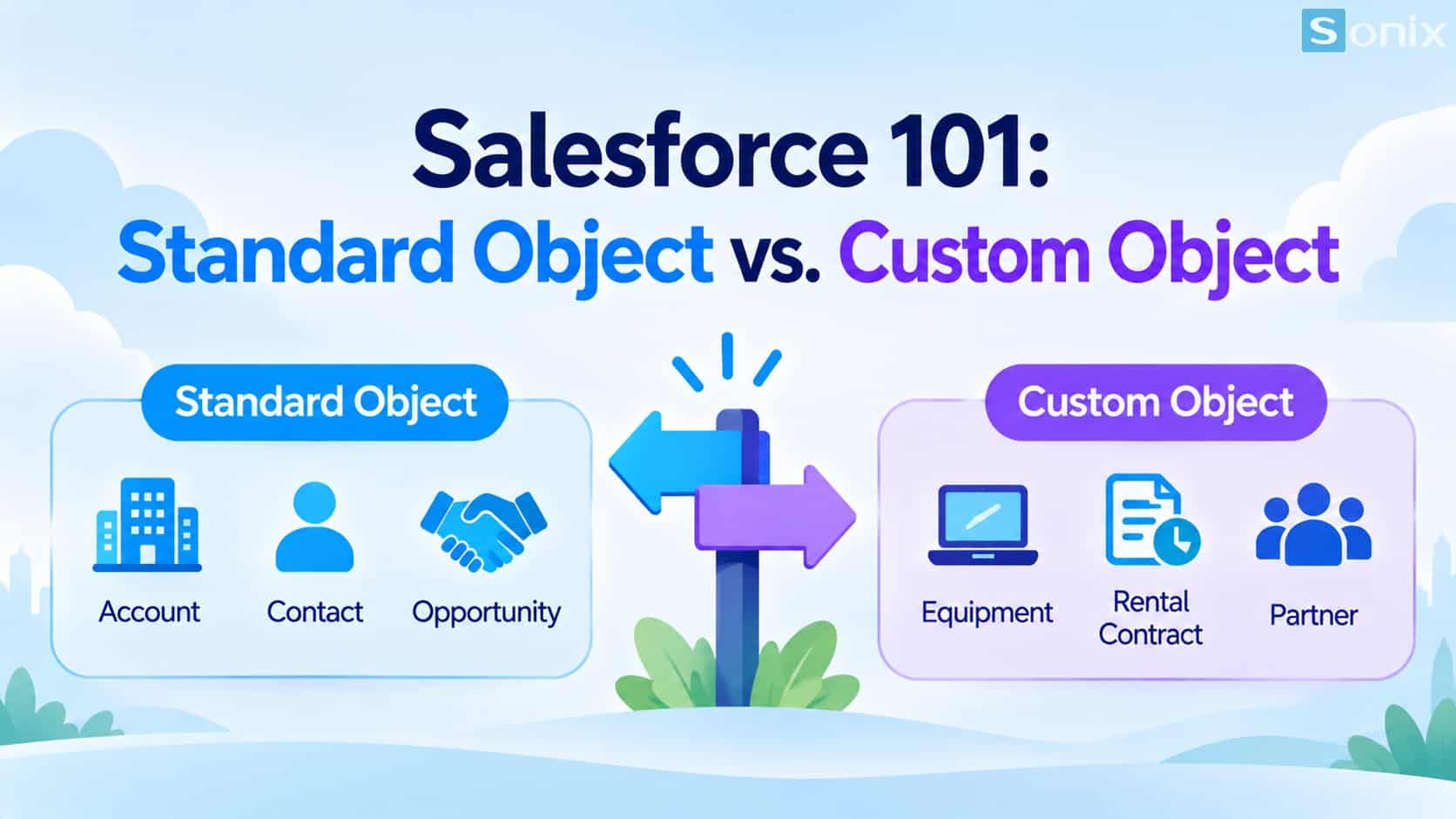 Check existing objects first, and create your own only when the data is truly different in nature.
What is an object in Salesforce
In Salesforce, all data is stored in objects. Think of each object as a table: fields are the columns and records are the rows. Account stores companies, Contact stores people, Opportunity stores sales opportunities and Case stores support requests.
According to the Trailhead documentation on objects, Salesforce supports several types of objects, and the two most common are standard and custom. This article focuses on those two.
How a Salesforce Custom Object differs from a Standard Object
Standard Objects come built in with Salesforce and ship with many ready-made features. Custom Objects are ones you create for data specific to your business. The key thing to remember is that both can be extended: you can add custom fields to a Standard Object, so a new object is not always necessary.
| Criteria | Standard Object | Custom Object |
|---|---|---|
| Origin | Built into Salesforce | Created by an admin |
| Examples | Account, Contact, Opportunity, Case, Product | Rental Contract, Equipment, Dealer (varies by business) |
| Built-in features | Many ready-made features and reports | Has fields, relationships and layouts, but needs more setup |
| Add custom fields | Yes | Yes |
| Delete the object | Not possible | Possible |
| API name | No special suffix | Ends in __c |
| Count limits | Not applicable | Depends on edition |
4 questions to decide whether to build your own object
Answer these four questions in order before you open Object Manager.
Is there an existing object close to what you need?
- Name the thing you want to track, then look for an existing object that describes the same kind of entity
- For example: a catalog of equipment you sell is close to Product, while equipment a customer has bought and uses may be close to Asset. Check Object Manager to see what your plan includes
How much of the need does it cover?
- If it covers about 80%, use it and fill the rest with custom fields, page layouts or validation rules
- This is a rule of thumb, not a hard threshold
Is the data truly different in nature?
- Different in life cycle, in who can view it, or in how it links to customers or other objects
- If you must bend the meaning of an existing object to squeeze your data in, that is a sign to build your own
Could a Record Type replace a new object?
- If records differ only in presentation or process across a few groups of the same kind, a Record Type is often enough
- Create a new object only when the data structure is truly different
To go deeper into data modeling, try the Data Modeling module on Trailhead.
Example: equipment, rental contracts and dealers
Hypothetical example: an office equipment distributor wants to track three things. The table below is a starting point for your thinking, not a fixed answer, because the result depends on how you operate.
| You want to track | Consider an existing object | When to build your own |
|---|---|---|
| Equipment | Product for the sales catalog, Asset for equipment a customer owns | When equipment has its own life cycle, attributes and maintenance schedule that do not fit either object |
| Rental contracts | Contract, with fields and Record Types for contract type | When a rental has many equipment lines, payment schedules and complex renewals |
| Dealers | Account with a dedicated Record Type for dealers | When dealers need a structure, visibility and process completely different from customers |
If your CRM foundation is not solid yet, read our Salesforce Sales Cloud setup guide in 10 minutes first. You can also explore Sonix’s Salesforce solutions (in Vietnamese).
Risks of creating objects carelessly
Creating an object is quick, but every object brings work later. Things to weigh:
Edition limits. The maximum number of Custom Objects depends on your edition, and public sources report different figures. Check the official documentation for your edition instead of relying on any single number.
Permissions and reporting. Each object needs its own access settings, page layouts and reports. Data spread across many objects also makes combined reports harder.
Integration and upkeep. More objects means more to sync when you connect other systems, and more to explain to new people.
Hard to undo. Once data and reports depend on an object, merging or removing it costs far more than creating it did.
So test with a few sample records in a sandbox before you decide, and write down why each object exists.
Checklist before you create a Salesforce Custom Object
Before opening Object Manager, run through this short list.
☐ Named clearly what you want to track and the data you need to store
☐ Searched Object Manager for an existing object that is close
☐ Tried filling the gap with fields, page layouts or validation rules
☐ Considered a Record Type instead of a new object
☐ Checked the Custom Object limit for your edition
☐ Tested with a few sample records in a sandbox
☐ Written down why the object exists and who owns it
What are you trying to track that you do not know where to put? Leave a comment below and the Sonix team will suggest which object to use.
Salesforce CRM
Guide
Best Practices
SME
Book a consultation with Sonix to review your specific data and choose the right way to model it, before you configure anything.
Sonix: Your success is our happiness.
Leave us your comment