

 Tiếng Việt
 日本語
日本語The Salesforce Winter 27 release notes run to hundreds of items, and most people do not have time to read them all. The short answer: you only need to grasp the 5 changes below, grouped by role (admin, sales, service and security), then read deeper into the part that affects you.
Each change is explained in plain language: what it is, who can use it and what to watch for before switching it on. A short checklist at the end helps you prepare your own org.
Important note: this article picks 5 visible items out of hundreds and does not replace Salesforce’s official release notes. Many features depend on edition and license, and each org’s upgrade date differs by instance, so check Salesforce Trust (the Maintenances tab) rather than relying on one common date. The office equipment distributor in the examples is an illustrative assumption, not a real customer.
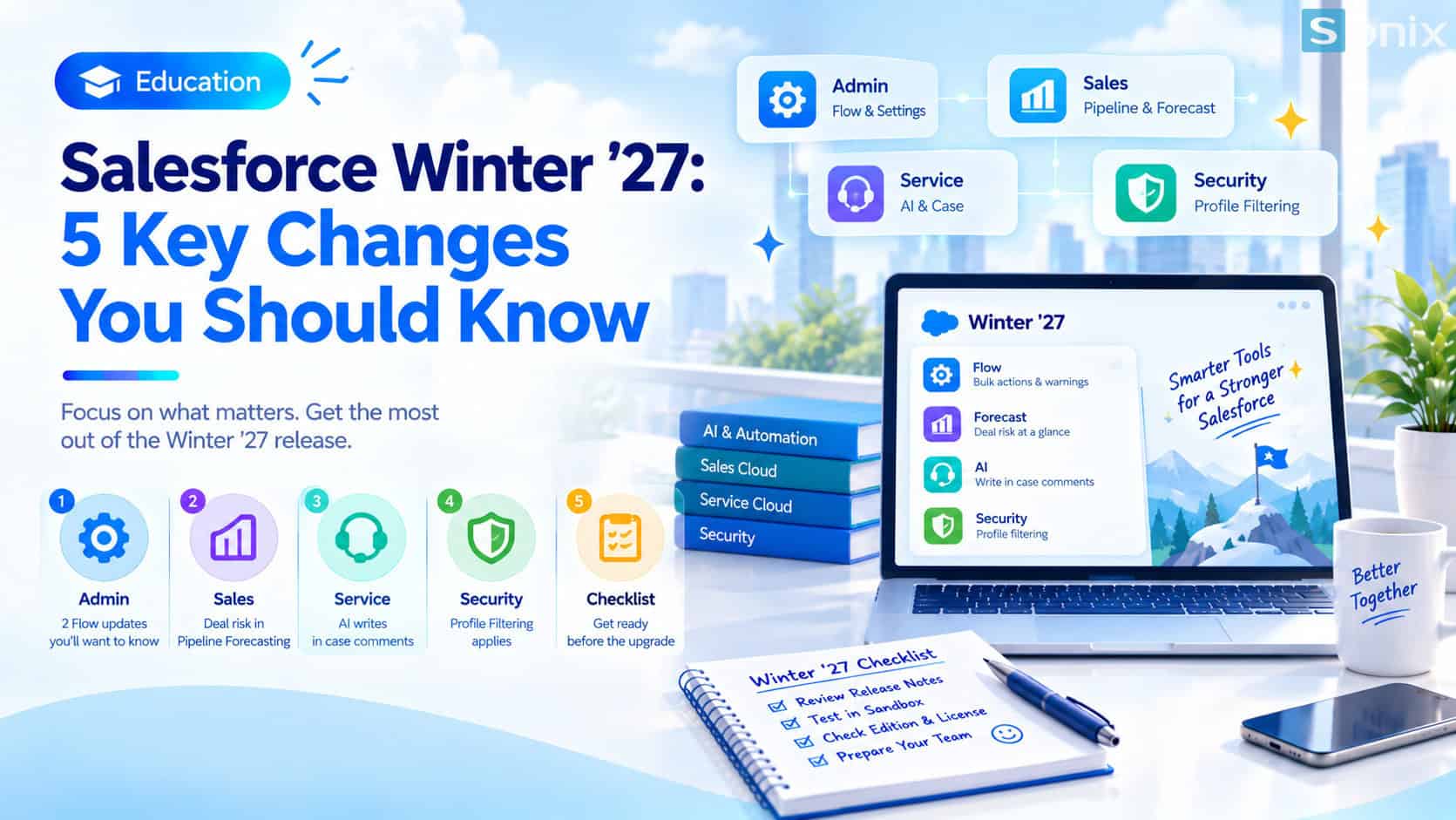 Salesforce Winter 27: 5 changes worth knowing for Admin, Sales, Service and security.
Salesforce Winter 27: why just 5 changes
Each major Salesforce release usually brings hundreds of items, from the platform and AI to individual products. Reading everything is unrealistic, and skimming risks missing what matters to your own work.
A simpler way is to read by role. Admins care about Flow and changes that could break configuration. Sales and managers care about how they view the pipeline. Service cares about tools for writing and handling Cases. The table below summarizes the 5 changes, and the sections after it explain each one.
| Change | For | Worth noting |
|---|---|---|
| 1. Bulk Screen Flow | Admins | Process many records from a list view in one go |
| 2. Flow Builder warns on save | Admins | Catches missing required fields before the flow runs |
| 3. Deal risk in Pipeline Forecasting | Sales, managers | See problem deals right on the forecast screen |
| 4. AI writing in Case comments | Service | Polish, expand or summarize comments |
| 5. Profile Filtering | Admins, security | Test first: it can break older logic |
For admins: 2 changes in Flow
Screen Flow runs as a bulk action
- What it is: a Screen Flow can run as a quick action from list views and related lists. Users select several records, then run one guided flow to process them together.
- Benefit: admins can build bulk update, review or assignment experiences without making users handle records one at a time, and without custom UI.
- Illustrative example: a team lead at an office equipment distributor selects 30 leads in a list view and reassigns them to a new salesperson through a single flow.
Flow Builder warns you on save
- What it is: when you save a flow, Flow Builder warns you if a Create Records element using a record variable is missing an assignment for a required field. Community sources also report warnings for field lengths that could be exceeded.
- Benefit: errors that used to appear only when the flow ran for real are now flagged while you build.
- Note: reopen a few important live flows to see whether new warnings appear.
For sales: deal risk right in the forecast
Pipeline Forecasting shows deal risk
- What it is: Winter 27 brings deal risk, methodology scores, contact insights and agent activity right into the forecast screen, now called Pipeline Forecasting.
- Benefit: managers see each deal’s health while reviewing the forecast, instead of opening every record.
- Note: the feature depends on edition and license, so check before promising it to your sales team.
If your team does not yet have a habit of reviewing the pipeline, start with CRM Reports: 3 Simple Must-Have Reports to Start With before moving to these advanced layers of information.
For service: AI writing in Case comments
AI tools in the Case comment box
- What it is: support reps can polish, expand or summarize a draft right in the comment editor, with an option to refine using their own instructions.
- Benefit: comments sent to customers or internal notes come out clearer and in the right tone, with less rewriting.
- Setup: admins tune the guidance through the Refine Case Comment prompt template and show or hide the buttons in Support Settings.
- Requirements: according to community sources, Agentforce for Service and Einstein for Service must be enabled in the org.
To understand what AI in Salesforce can and cannot do, read Einstein AI in Salesforce: What Can AI Actually Do for Your Sales & Marketing Team?.
For security: Profile Filtering
Profile Filtering is enforced
- What it is: users see only their own Profile name unless they hold one of the exception permissions such as View All Profiles. The feature appeared in Summer 26 and is enforced from Winter 27.
- Risk: flows, validation rules or Apex queries that reference another user’s Profile name may stop working correctly.
- How to test: turn it on in a sandbox under User Management Settings, then run your key processes as a standard user. Admin accounts hold exception permissions, so they will not reveal the problem.
Before you adopt Winter 27
Check edition and license. Many AI features in this release need an add-on or a specific edition. Read the relevant release notes entry before switching anything on or promising it to your team.
Look up your org’s upgrade date. Salesforce upgrades in waves and by instance, and outside sources quote slightly different dates, so do not settle on one common date. Find your instance on Salesforce Trust, under Maintenances, and cross-check with the official release notes.
Watch for renamed products. According to some sources, products such as Sales Cloud and Service Cloud are now called Agentforce Sales and Agentforce Service in newer documentation. When searching the release notes, try both the old and new names.
Test first, enable later. For changes that could affect live configuration, such as Profile Filtering, test in a sandbox before applying them to real users.
Winter 27 checklist by role
Before diving into any single feature, run through this short list to make sure you and your team are ready.
☐ Looked up my org’s upgrade date on Salesforce Trust
☐ Read the part of the release notes for my role
☐ Admins have tried bulk Screen Flow in a sandbox
☐ Admins have reopened key flows to check for new save warnings
☐ Tested Profile Filtering with a standard user account
☐ Checked edition and license before enabling AI features
Are you in sales, admin or management? Leave a comment below and the Sonix team will go deeper into the part that affects you.
Salesforce CRM
Einstein AI
Industry Trends
Digital Transformation
Book a consultation with Sonix to review your org, choose the features worth enabling and avoid changes that could break your current setup.
Sonix: Your success is our happiness.
Leave us your comment