

 Tiếng Việt
 日本語
Slack Salesforce is the connection that brings deal information straight into your team’s chat channel, so nobody has to open the CRM or message each rep one by one. Picture this: a 2 billion VND deal closes, and the whole team finds out three days later in a meeting.
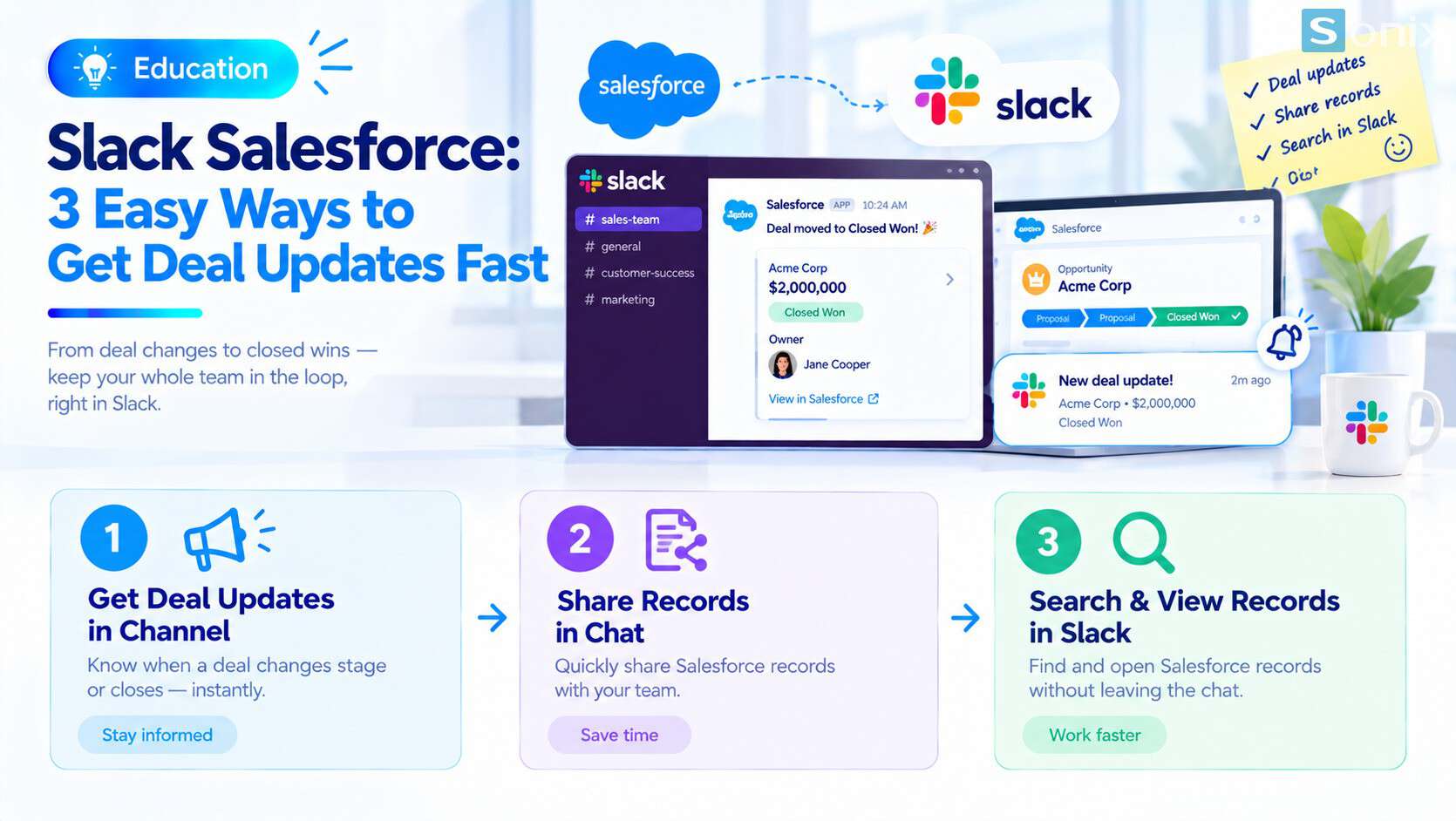
The short answer: the Salesforce apps for Slack let you post an alert to a channel when a deal changes stage or is won, share records so everyone can preview them, and search for and view records inside Slack. The most important tip: turn on alerts only for key events, or the channel floods and people mute it.
Important note: the office equipment distributor and the 2 billion VND deal below are hypothetical examples, not real customers. Features depend on the edition and license of both Salesforce and Slack, and menu names may differ by release. The older Salesforce app built by Slack is no longer supported, so use the apps built by Salesforce, such as Sales Cloud for Slack, and check the official documentation before rollout.
Why deal news always arrives late
On many sales teams, deal news takes a detour. Reps update the CRM, but managers do not open the CRM every hour, so they message each rep to ask. Some answer right away, some forget, and the official news arrives at the weekly meeting.
The cost is more than lost time. Warehouse, finance or support teams do not know a deal just closed, so they cannot prepare. Reps’ wins are also recognized late. The table below shows the difference when deal news goes straight into the chat channel.
| Before connecting | After connecting | |
|---|---|---|
| Knowing a deal closed | Days later, in a meeting or by chat | As soon as it is updated, in a shared channel |
| Viewing deal details | Open the CRM, find the record | Quick preview right inside Slack |
| Discussing a deal | Scattered across many chat groups | Centered around one record |
| Recognizing wins | Late, easily missed | Timely, the whole team sees it |
What Slack Salesforce does for sales teams
Three basic features solve most of the problems above.
Alerts in a channel when a deal changes
- An automatic message posts to a channel when an Opportunity changes stage or is won
- Hypothetical example: the sales team’s shared channel gets the news the moment the 2 billion VND deal is won, and warehouse and finance see it too
Share records into a conversation
- Paste a Salesforce record link into Slack and its basic details appear so everyone can preview it
- Nobody has to open the CRM just to see which deal is being discussed
Search and view records inside Slack
- Look up common records such as Account, Opportunity, Contact, Lead and Case without leaving the chat window
- Handy during a quick meeting or when messaging from a phone
Beyond these three, the official Salesforce page says Sales Cloud for Slack also offers Salesforce channels, where the team works together on an Opportunity, along with deal notifications in Slack. Some features exist only on certain plans, so check yours.
4 setup steps for admins
Setup is usually a joint effort between the Salesforce admin and the Slack admin. It has four main steps:
Enable the app in Salesforce
- Go to Setup, find Slack Apps Setup and enable Sales Cloud for Slack
- Enable only the apps you actually use
Assign permissions to users
- Assign the right permission set to the people who will use the feature
- Check access to the objects you want to show in Slack
Install the app in Slack
- A Slack admin installs the app and authorizes the connection with Salesforce
- Each user also connects their own account
Choose events, choose channels and test
- Pick the events to announce and the channel to receive them
- Test in a sandbox or on a test Opportunity before turning it on for everyone
Menu and permission set names may differ by release. For sharing records and setting up alerts, see the Slack help page on Salesforce apps. If your CRM foundation is not solid yet, read our Salesforce Sales Cloud setup guide in 10 minutes first. You can also explore Sonix’s Salesforce solutions (in Vietnamese).
How to turn on alerts without flooding the channel
The most common mistake is turning on every alert from day one. Within days the channel floods, people mute it, and the tool loses its value. Start small and expand.
| Event | Post to the shared channel? | Why |
|---|---|---|
| Deal won | Yes | The team and related departments need to know right away |
| Move to a key stage such as quote sent | Yes, selectively | Lets managers follow along without asking |
| Edits to individual fields | No | Creates noise and makes people mute alerts |
| Bulk data imports or updates | No | Can trigger many messages at once |
Split channels by audience. Send win announcements to a company-wide channel and detailed updates to the sales team channel.
Use bulk alerts sparingly. A bulk alert posts updates for every record of one type to a channel, so use it only when the whole team truly needs to see everything.
Review after two weeks. Ask the team which alerts help and which are noise, then switch some off.
What to check before rollout
Edition and license. Features depend on your Salesforce and Slack plans. Ask your provider before planning.
API access. Some editions need API access for integrations. For example, Slack’s documentation for the older integration package says Salesforce Professional needs the API Access add-on. Check this for your own environment.
Permissions and security. Channel alerts can show record names and deal details. Think about who belongs in which channel, especially public ones.
An owner. Someone needs to maintain the list of events and channels so alerts keep matching the current sales process.
Checklist before you turn on Slack Salesforce
Before switching it on for the whole team, run through this short list.
☐ Picked the 2–3 deal events that truly deserve a channel alert
☐ Chosen a Slack channel for each audience
☐ Checked edition, license and API access
☐ Assigned permission sets to the people who need them
☐ Tested in a sandbox or on a test deal
☐ Agreed on clear stage names so alerts are easy to read
☐ Planned a review of the alerts after two weeks
How does your team hear about new deals today? Leave a comment below and the Sonix team will suggest how to route the news to the right channel.
Slack
Salesforce Sales Cloud
Sales
Digital Transformation
Book a consultation with Sonix to decide which events belong in which channel and set it up for the edition you use, without the noise.
Sonix: Your success is our happiness.
Leave us your comment