

 Tiếng Việt
 日本語
日本語Sales does not need to see warranty fields, and technical support does not need to see discount fields. Salesforce record types and page layouts are two tools that let one CRM show each team the right fields, so the screen is cleaner, data entry is more accurate and mistakes are fewer.
In simple terms: a page layout decides which fields appear and how they are arranged. A record type lets the same object (for example, opportunities) have several types, each with its own picklist values and process. Both are assigned by user group. The most important advice: start with 2 types and do not split too finely.
Important note: the office equipment distributor in this article is an illustrative assumption, not a real customer. Menu names may differ depending on your version and org configuration. A page layout makes the screen cleaner but does not replace data permissions; the Notes section explains this further.
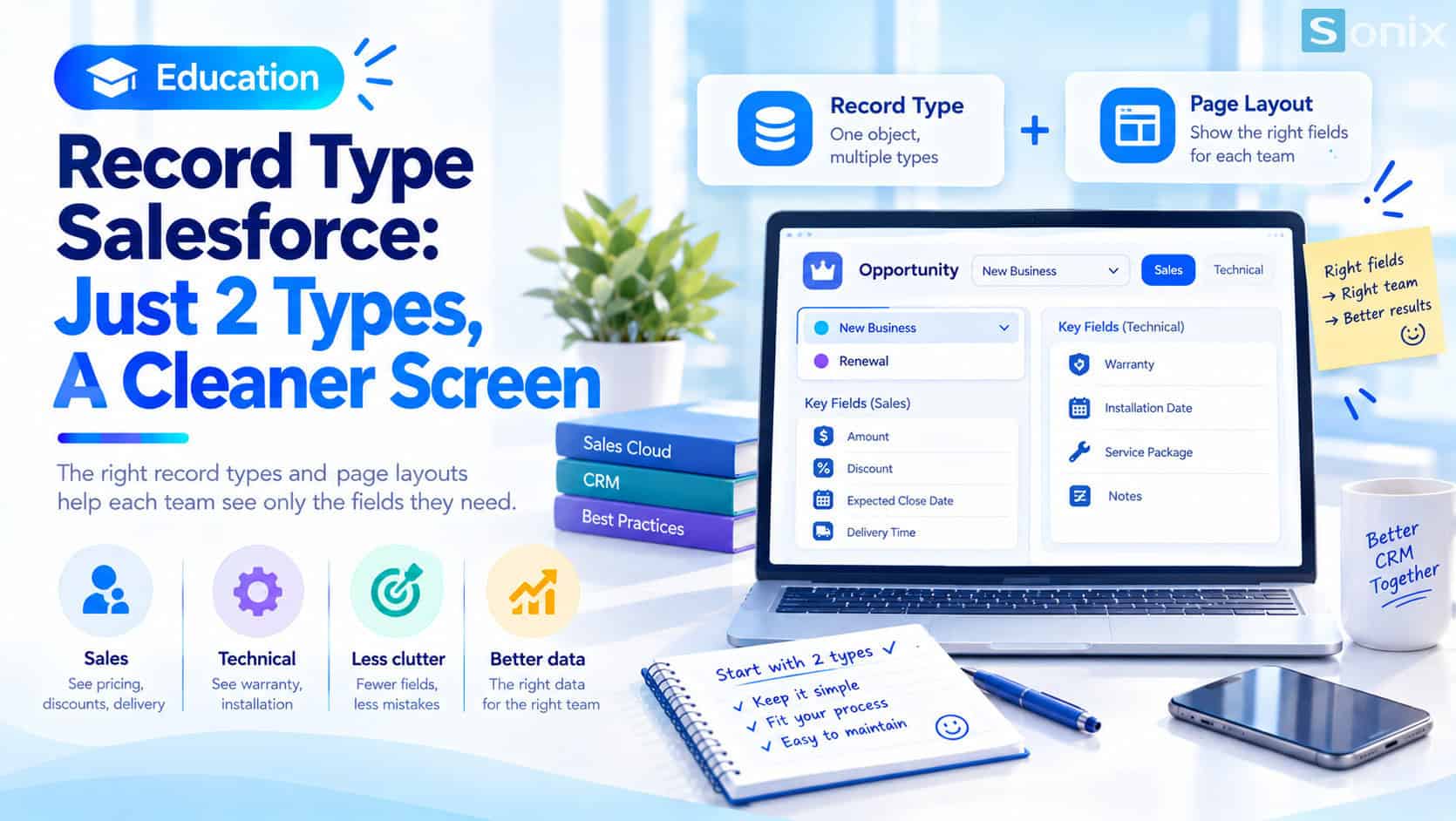 The CRM screen before and after tailoring with page layouts and record types.
Why one screen for everyone is not enough
When everyone works on one screen full of fields, two things tend to happen. People enter extra information that is not part of their job, or skip important fields because they are buried among too many others. The result is missing data, wrong data, and fewer and fewer people wanting to open the CRM.
Illustrative example: at an office equipment distributor, sales needs to see price, discount and delivery time. Technical support needs warranty information and installation schedules. When everyone sees the same screen, each side has to scroll past many fields that are not theirs.
| Before | After | |
|---|---|---|
| Fields on screen | Many, mixed across teams | Only the fields relevant to the role |
| Data entry | Extra, missing, error-prone | Clean, on-task, fewer errors |
| Process | One stage list for every kind of deal | Each deal type has fitting stages |
Page layouts: deciding which fields appear
What a page layout does
- Decides which fields appear on a record and how they are arranged
- Decides which related lists and action buttons appear
- Each team can have its own page layout for the same object
Assigned by user group
- Page layouts are assigned to users through their profile, combined with the record type of the record being viewed
- Example: the Sales profile sees a layout with discount fields, the Technical profile sees one with warranty fields
If you are not yet comfortable with Setup and the opportunity object, Salesforce Sales Cloud Setup Guide in 10 Minutes is a good place to start.
Salesforce record types: one object, several types
A page layout only changes how things are displayed. When two groups of work differ in both picklist values and process, you need record types. A record type lets one object have several types, each with its own picklist values, process and page layout.
The most familiar example is an opportunity with two types: New Business and Renewal. A new deal goes through discovery, quoting and negotiation. A renewal, for instance renewing an equipment maintenance contract, may need fewer, shorter steps and fields such as the current contract’s expiry date. With record types, each type gets its own stage list and the right screen.
| Page layout | Record type | |
|---|---|---|
| Decides | Which fields appear and how they are arranged | The record type: picklist values and process |
| Use when | You only need to change the display | Picklist values or process differ |
| Assigned by | Profile, combined with record type | Profile (user group) |
| Example | Sales sees discount fields | Opportunities of type New Business and Renewal |
In Lightning, Dynamic Forms is another way to show or hide fields conditionally right on the record page, which can sometimes spare you from adding a record type just to change the layout. However, Dynamic Forms is not available on every object, so check your org.
How to set it up, step by step
List user groups and fields
- For each team, write down the 5 to 10 fields they truly need
- Note which fields are read-only and which are required
Create a page layout for each group
- Create or clone a page layout and remove fields that are not needed
- Put the important fields at the top
Create record types when the process differs
- Create one only when picklist values or process genuinely differ
- For opportunities, link each type to its own stage list
Assign by profile
- Choose which record type and page layout go to which profile
- Set a sensible default record type so staff do not have to choose every time
Test with a standard user account
- Log in as someone from each team, or use log in as another user if you are permitted
- An admin account can look different from a real user’s, so do not test with admin only
Notes on not splitting too finely
Start with 2 types. Each record type adds something to maintain: another page layout, more picklist values, more to explain to new staff. Splitting into 6 or 7 types from the start usually makes the team reluctant to update records and the configuration quickly gets messy. Add a third type only when there is a clear reason.
A page layout is not a permission. Hiding a field from a page layout makes the screen cleaner, but the data may still be reachable in other ways such as reports or search. If information is truly sensitive, use field-level security instead of only hiding it on screen.
Think about reports. Record types can be used to filter and group in reports, for example to compare New Business with Renewal deals. For ideas on a first report, see CRM Reports: 3 Simple Must-Have Reports to Start With.
Changes after data exists. Changing a record type or removing a picklist value when many records already exist can affect older data, so try it first in a sandbox.
Checklist before tailoring your CRM screen
Before creating any more record types, run through this short list to make sure the configuration really helps the team work more cleanly.
☐ Listed the teams and the fields they truly need
☐ Created a separate page layout for each main group
☐ Created record types only where process or picklist values differ
☐ Started with at most 2 types
☐ Assigned page layouts and record types by profile
☐ Tested with a standard user account
☐ Used field-level security for sensitive information
How many fields on your CRM screen does nobody fill in? Leave a comment below, the Sonix team would love to hear how you work.
Salesforce CRM
Best Practices
How-to
SME
Book a consultation with Sonix to review the fields you use and design page layouts and record types that fit your business.
Sonix: Your success is our happiness.
Leave us your comment